
When you open a saved report in Avaza, the heading at the top of the report has always shown the name of the standard report it was built from, such as “Project Dashboard” or “Timesheet Details”. If you keep several versions of the same report, they all look alike once they’re printed, exported or emailed.
The new Display Saved Report Title option fixes this. Turn it on, and the heading shows the name you gave your saved report instead. For example, a saved Timesheet Details report called “Billable Hours Available” will show “Billable Hours Available” at the top.
Availability: This option is currently available on three reports: Project Dashboard, Task List and Timesheet Details. We’re rolling it out to all other reports and will update this article as more become available.
Where the title appears
With the option turned on, your saved report’s name is used as the heading:
- When you view the report on screen
- When you print or export the report (for example, to PDF)
- In scheduled reports sent by email
How to turn on Display Saved Report Title
Step 1. Go to Reports and click the Saved tab at the top right. Your saved reports are listed here. The line at the bottom of each card (“Based on …”) shows which standard report it uses.
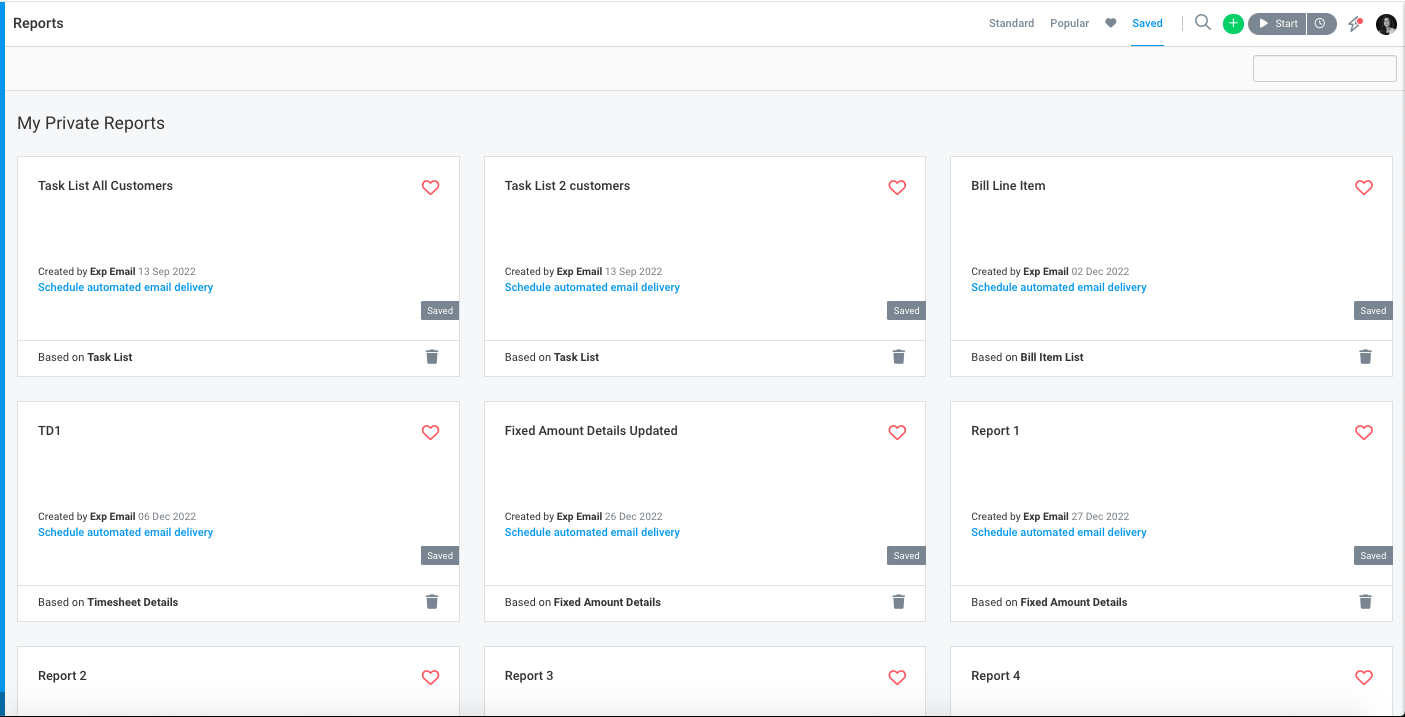
Step 2. Click the saved report you want to open. It must be based on Project Dashboard, Task List or Timesheet Details.
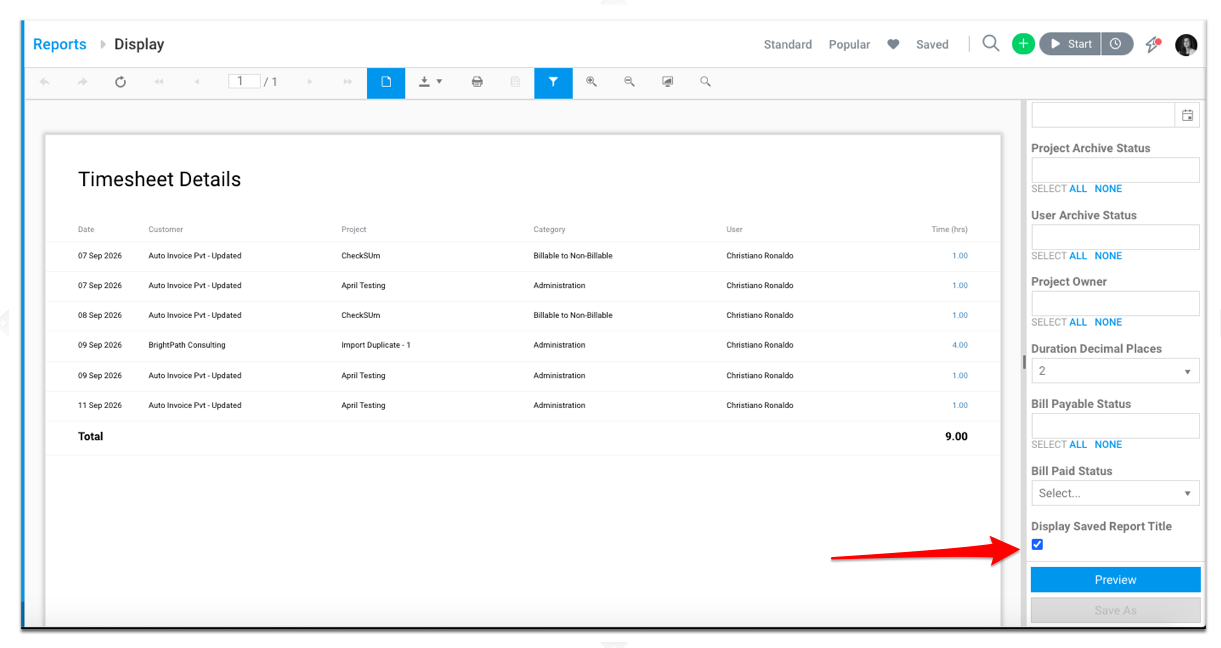
Step 3. In the filter panel on the right, scroll to the bottom and tick Display Saved Report Title. Until you preview the report again, the heading still shows the standard report name.
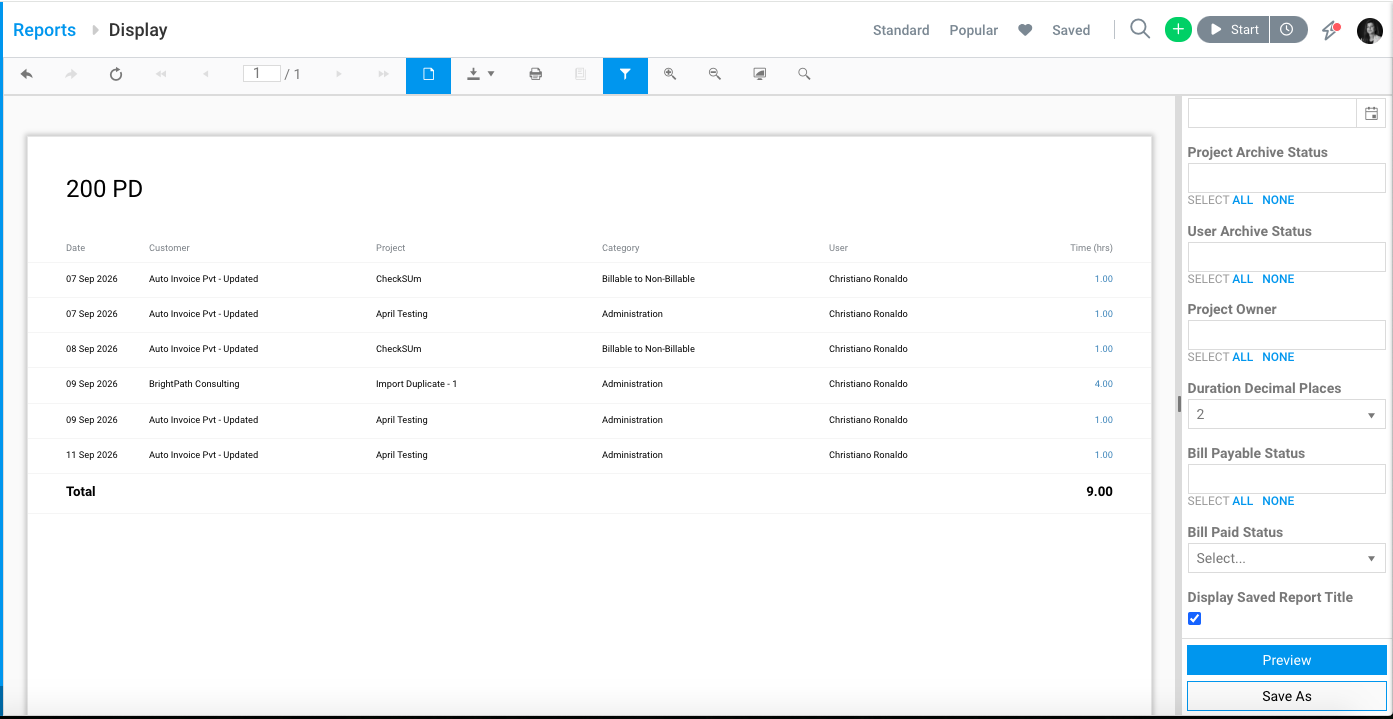
Step 4. Click Preview. The heading now shows your saved report’s name. In this example, the saved report is called “200 PD”.
Step 5. To keep this setting, click Save As. In the Update Existing Saved Report list, choose the saved report you’re working on, then click Save. The setting is saved with the report, so it’s used every time you open it and in all scheduled email deliveries.
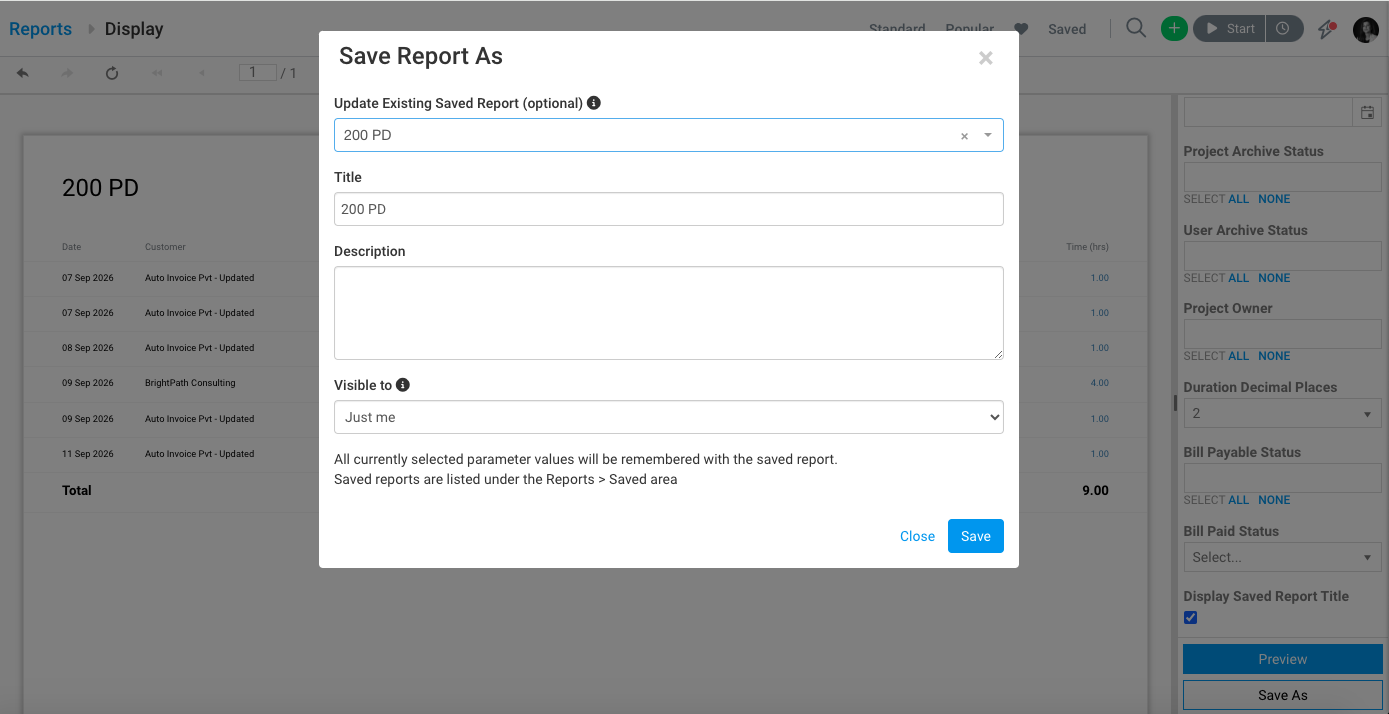
Tip: If you choose a different saved report in the Update Existing Saved Report list, its filters will be replaced. Leave the list empty and enter a new title if you want to create a separate saved report instead.
Scheduled reports
Scheduled reports use the settings stored with the saved report. Once you’ve saved the report with Display Saved Report Title ticked, every scheduled email will show your saved report’s name as the heading. You don’t need to change the schedule itself.
Turning the option off
Open the saved report, untick Display Saved Report Title, click Preview, and then save the report again using Save As as described in Step 5. The heading goes back to the standard report name.
Frequently asked questions
I don’t see the Display Saved Report Title option. Why?
The option currently appears only on Project Dashboard, Task List and Timesheet Details. It will be added to the other reports soon.
What happens if I tick the option on a standard report that isn’t saved?
The heading keeps the standard report name. There’s no saved report name to use, so nothing changes.
Can I use special characters such as apostrophes or quotation marks in my saved report name?
Yes. The name appears in the heading exactly as you typed it.
Does this change the name shown on the Saved tab?
No. The option changes only the heading inside the report. Your saved report keeps its name on the Saved tab.