
The Split Booking feature allows you to divide an existing multi-day resource booking into two separate schedule series. This is useful when plans change mid-booking and you need to adjust dates, availability, or scheduling rules for the remaining time period without editing the entire original booking.
When a booking is split:
- The original booking is shortened.
- A new booking is created starting from your selected split date.
- All scheduling details are copied to the new booking.
When Can You Split a Booking?
Split Booking is available only for bookings that span more than one day.
How to Split a Booking
- Go to the Resource Schedule.
- Right-click the booking you want to split.
- Select Split Booking from the menu.
- In the Split Booking window, choose the new start date for the second booking.
- Click Split to apply the changes.
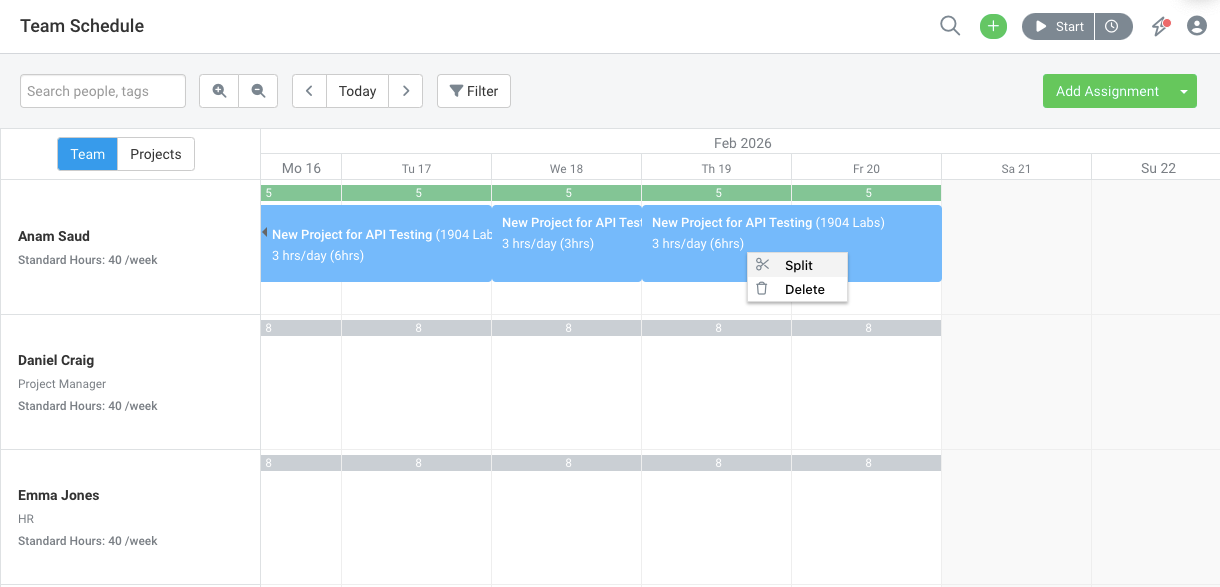
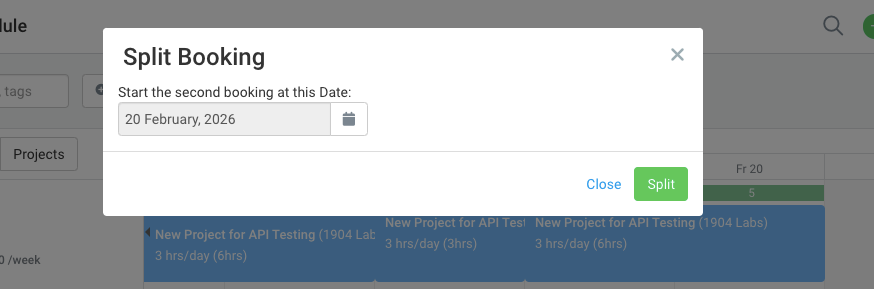
Choosing the Split Date
- The date field defaults to the date that was selected when the user right-clicked.
- You can select a date using the calendar.
- The selected date must be:
- After the booking start date, and
- On or before the booking end date
- If Schedule on days off is not enabled on the original booking:
- The new booking dates do not fall on days off.
- If the selected date is a day off, a warning will appear.
- If Schedule on days off is enabled on the original booking:
- The new booking can start on a day off.
What Happens After Splitting?
When you confirm the split:
Original Booking
- Its end date is updated to the day before the split date.
New Booking
- A new schedule series is created.
- It starts from the selected split date and ends on the original booking’s end date.
- All booking details are copied from the original booking.
Please note that Split Booking does not change the total duration across both bookings — it simply divides them.
Please contact Avaza Support for any further queries.