
How to create, edit, and manage recurring bookings on the Team Schedule. Covers patterns, multi-day occurrences, the three editing scopes, drag and drop, extending, splitting occurrences, recurring leave, and known limits.
1. Overview
Recurring Schedule Bookings let you set up a single booking that automatically repeats on the pattern you choose. Instead of creating the same booking week after week — for a recurring meeting, a sprint commitment, a quarterly planning block, or annual leave — you configure the pattern once, and Avaza generates every occurrence as part of a single series.
Recurring bookings work for both Assignment bookings (work allocations) and Leave bookings.
This guide walks through everything you need to know to use the feature confidently.
2. Creating a Recurring Booking
2.1 Open the Add Booking dialog
- Go to Team Schedule from the left navigation.
- Click the day in the calendar where you want the series to start. The Add Booking dialog opens.
- Fill in the standard booking details — assignee, project, timesheet category, task (optional), and hours per day.
2.2 Set up the recurrence
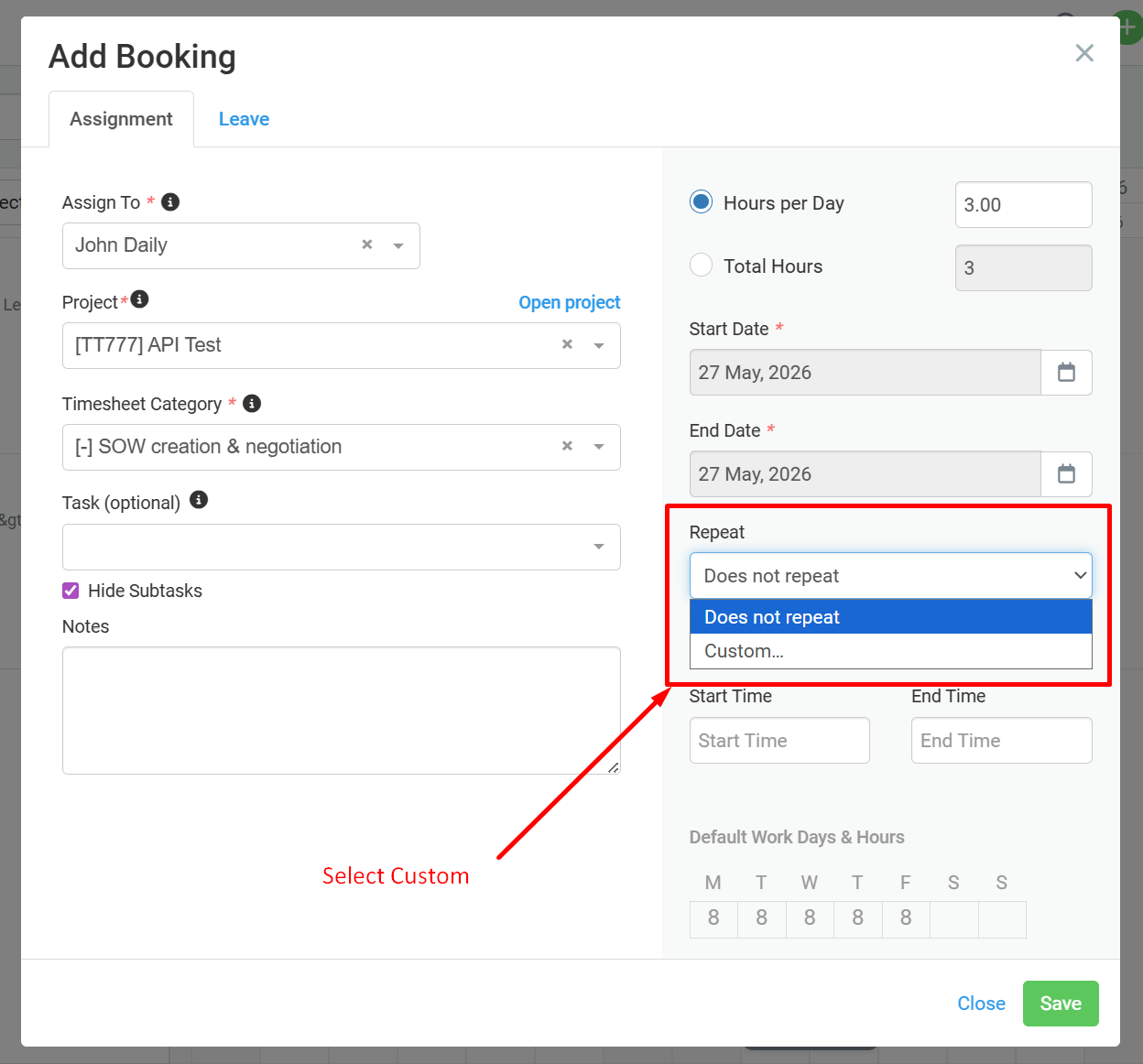
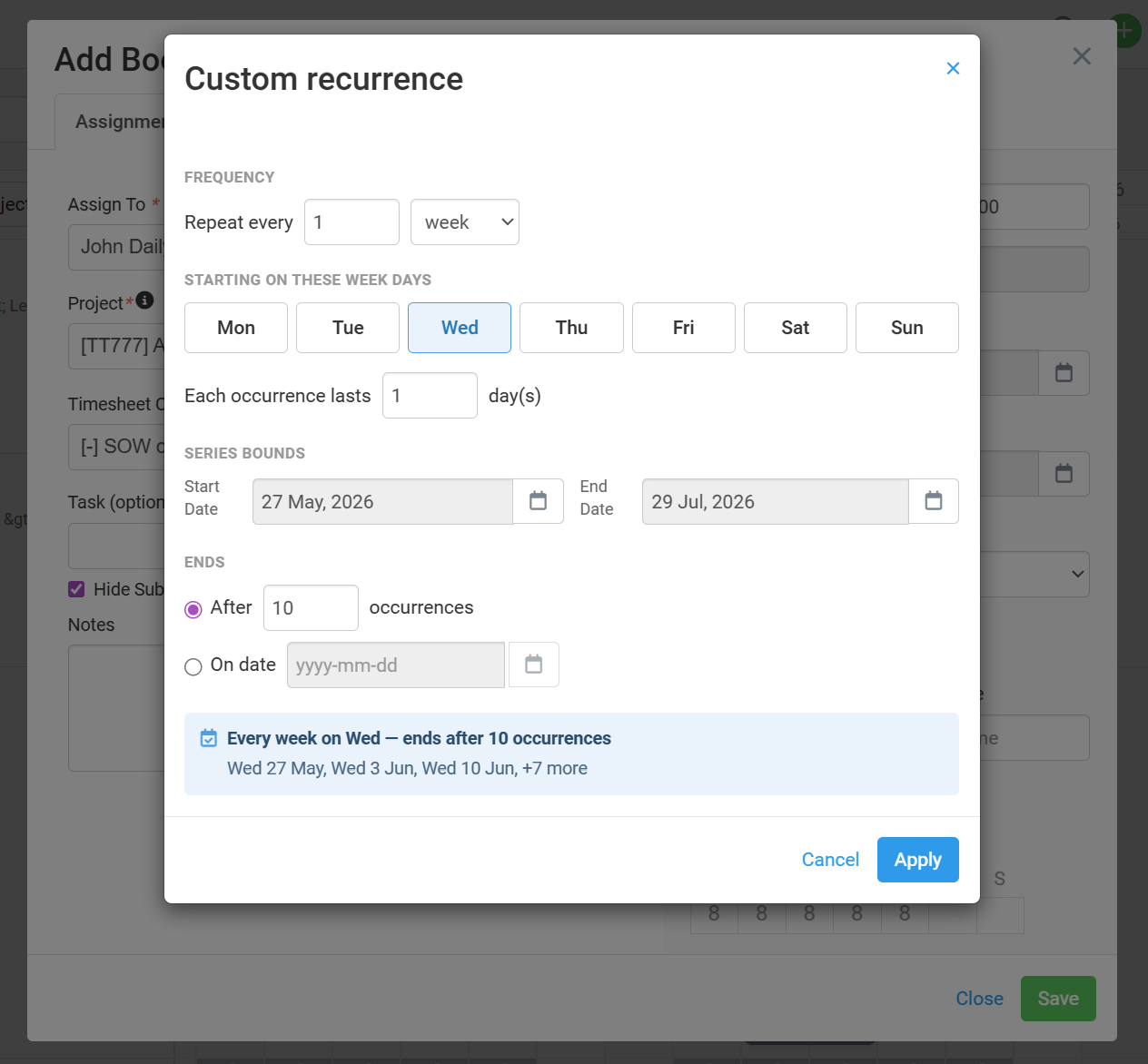
- In the Repeat dropdown, choose Custom. The Custom Recurrence dialog opens.
- Set the Frequency — Daily, Weekly, Monthly, or Yearly.
- Pick the days the booking should occur on (for Weekly) or the day of the month or year (for Monthly and Yearly). Daily repeats every N days with no day-of-week selection.
- Set how long each occurrence lasts (Each occurrence lasts N day(s)). For a single-day occurrence, leave at 1.
- Decide when the series should end — after a specific number of occurrences, or on a specific end date.
- Review the live preview at the bottom of the dialog. It shows the first few generated dates so you can verify the pattern is what you intended.
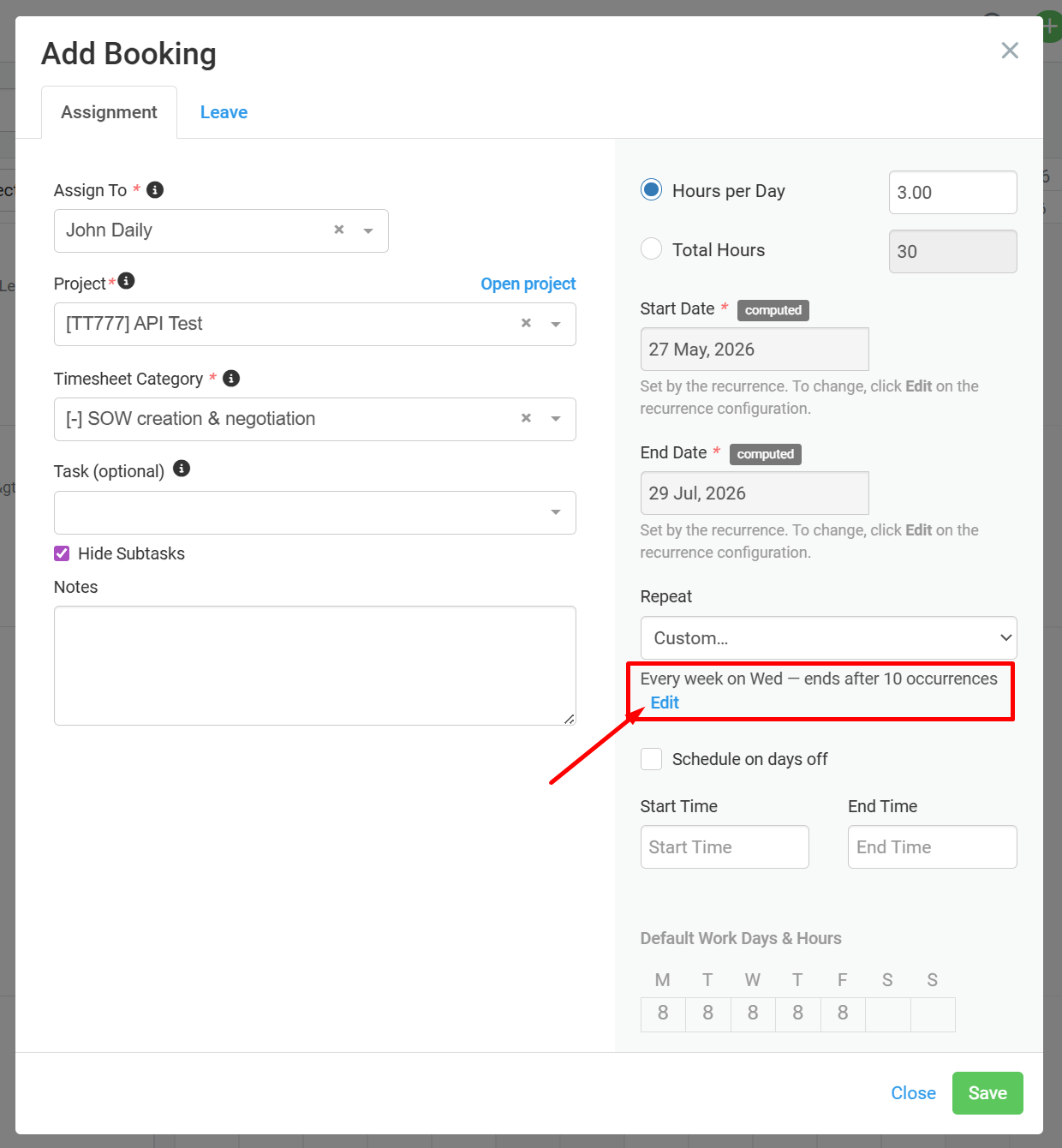
- Click Apply to return to the Add Booking dialog. Start Date and End Date are now set by the recurrence — they appear as read-only with a small “computed” badge.
- Click Save to create the recurring booking.
3. Recurrence Patterns
3.1 Frequencies
| Frequency | What it does | Typical use |
|---|---|---|
| Daily | Repeats every N days. | Daily standups, daily training sessions, daily check-ins. |
| Weekly | Repeats on one or more weekdays you select, every N weeks. | Weekly project standups, two days per week on a client engagement. |
| Monthly | Repeats on a specific day of the month, every N months. | Monthly status reviews, quarterly planning blocks (every 3 months). |
| Yearly | Repeats on a specific month and day, every N years. | Annual events, year-end review weeks, anniversary leave. |
3.2 Repeat interval
The Repeat every field at the top of the Custom Recurrence dialog controls how often the pattern fires. Set it to 1 for the default pattern (every day, every week, every month, etc.), or to a higher number to skip cycles.
Examples:
- Repeat every 1 day → every day.
- Repeat every 2 days → every other day.
- Repeat every 1 week on Mon → every Monday.
- Repeat every 2 weeks on Mon → every other Monday (fortnightly).
- Repeat every 3 months on day 15 → quarterly on the 15th.
- Repeat every 1 year on 1 Jan → annually on New Year’s Day.
3.3 Multi-day occurrences
The Each occurrence lasts field lets you set how long a single instance of the booking spans. This is for situations where the work itself takes multiple days each time it happens.
Examples:
- A 2-day workshop every fortnight: weekly, Mon, Each occurrence lasts 2 days, every 2 weeks.
- A 3-day planning offsite each quarter: monthly, Each occurrence lasts 3 days, every 3 months.
- A week-long annual conference: yearly, Each occurrence lasts 5 days.
Maximum occurrence duration by frequency:
| Frequency | Maximum occurrence duration |
|---|---|
| Daily | 1 day |
| Weekly | 7 days |
| Monthly | 31 days |
| Yearly | 365 days |
These limits exist to keep occurrences from overlapping each other. If your configuration would produce overlapping occurrences, Avaza shows a warning before you can save.
3.4 Ending the series
Choose one of two terminators in the Ends section of the Custom Recurrence dialog:
- After N occurrences — set a specific count. The series will produce exactly N instances and stop. This is the default, and the most common choice.
- On date — set a specific end date. The series will keep producing occurrences up to and including the last one whose end date fits within your target date.
| Series length limitEach recurring series can produce a maximum of 200 occurrences. If your configuration would generate more, you’ll see a warning asking you to reduce the count or shorten the date range. |
4. Visual Indicators on the Calendar
Recurring bookings look the same as regular bookings on the calendar, with one difference: each occurrence shows a small recurring icon (a circular arrow symbol) in the top-right corner of the bar.
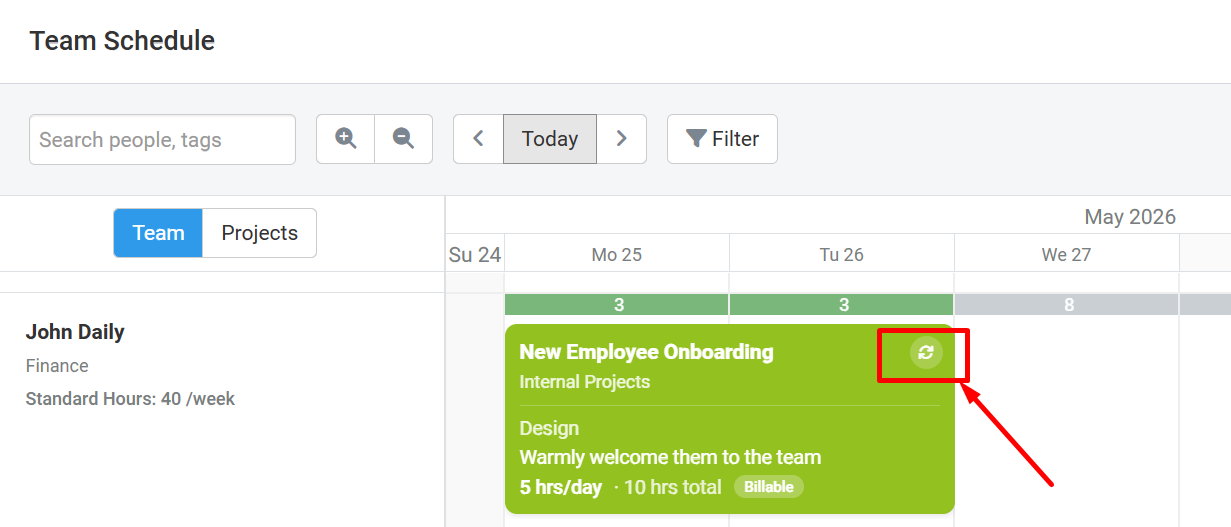
The icon is hidden when both of the following are true:
- The occurrence is one day long (single-day bookings only)
- AND the calendar is at one of the two most-zoomed-out levels
In every other case the icon is visible. This rule keeps the calendar clean at high zoom levels where the bars get very narrow, while still making recurring bookings obvious at normal viewing zoom.
5. Editing a Recurring Booking
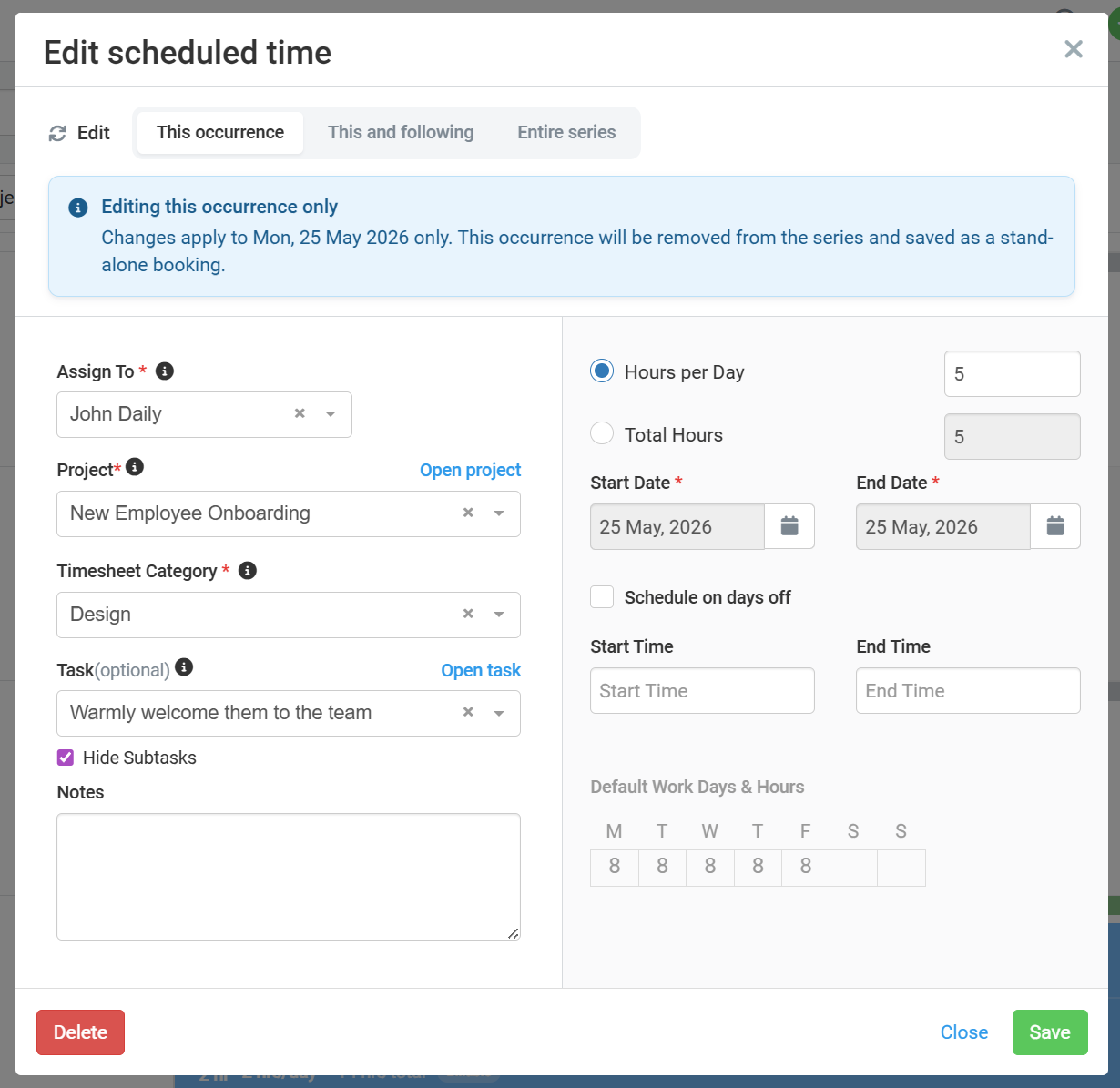
This is where recurring bookings get powerful — and where it’s worth taking a minute to understand the options. When you click on any occurrence of a recurring series, the Edit Booking dialog opens with three scope tabs at the top:
- This occurrence — affects only the occurrence you clicked.
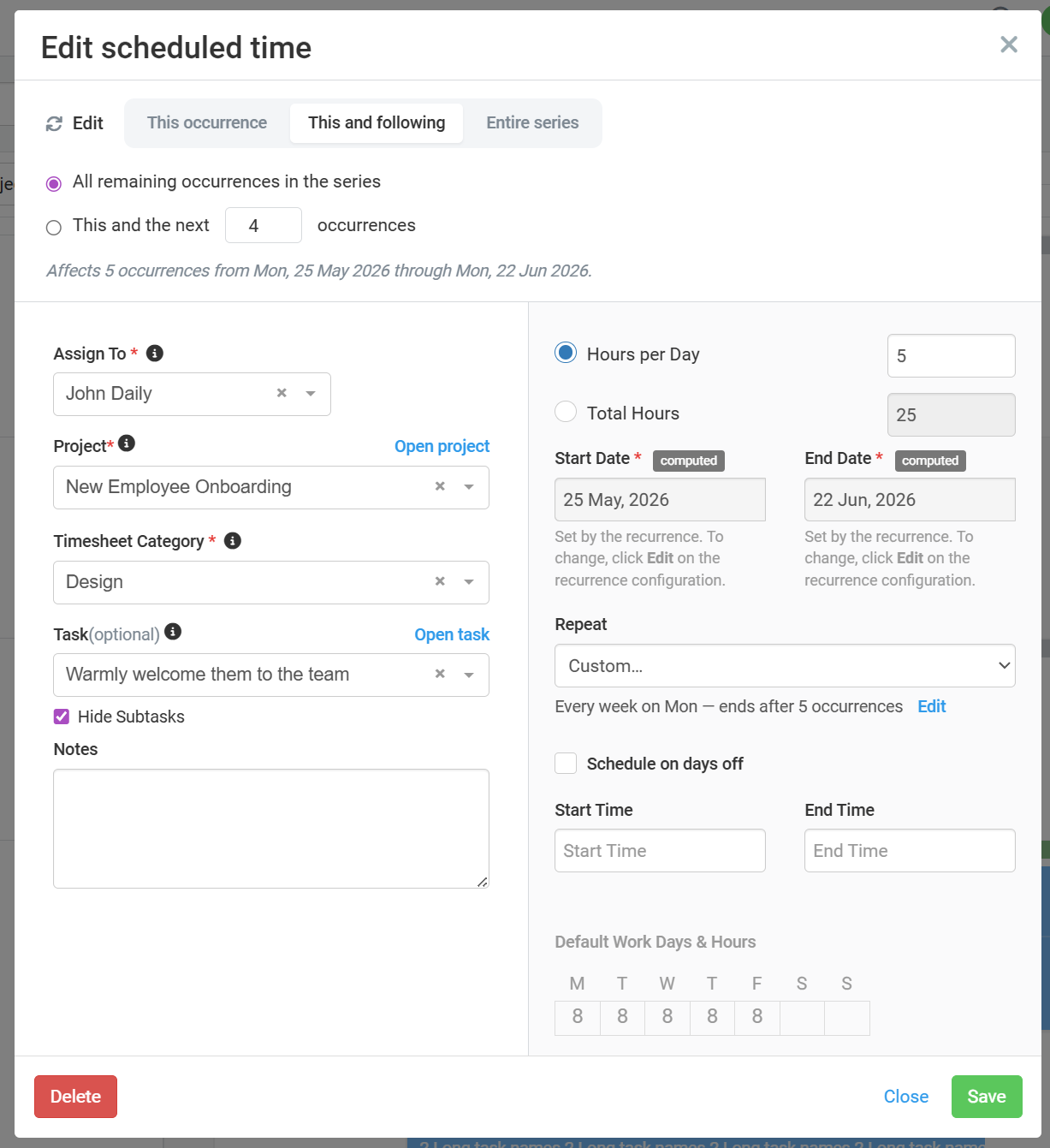
- This and following — affects the clicked occurrence and some or all later occurrences.
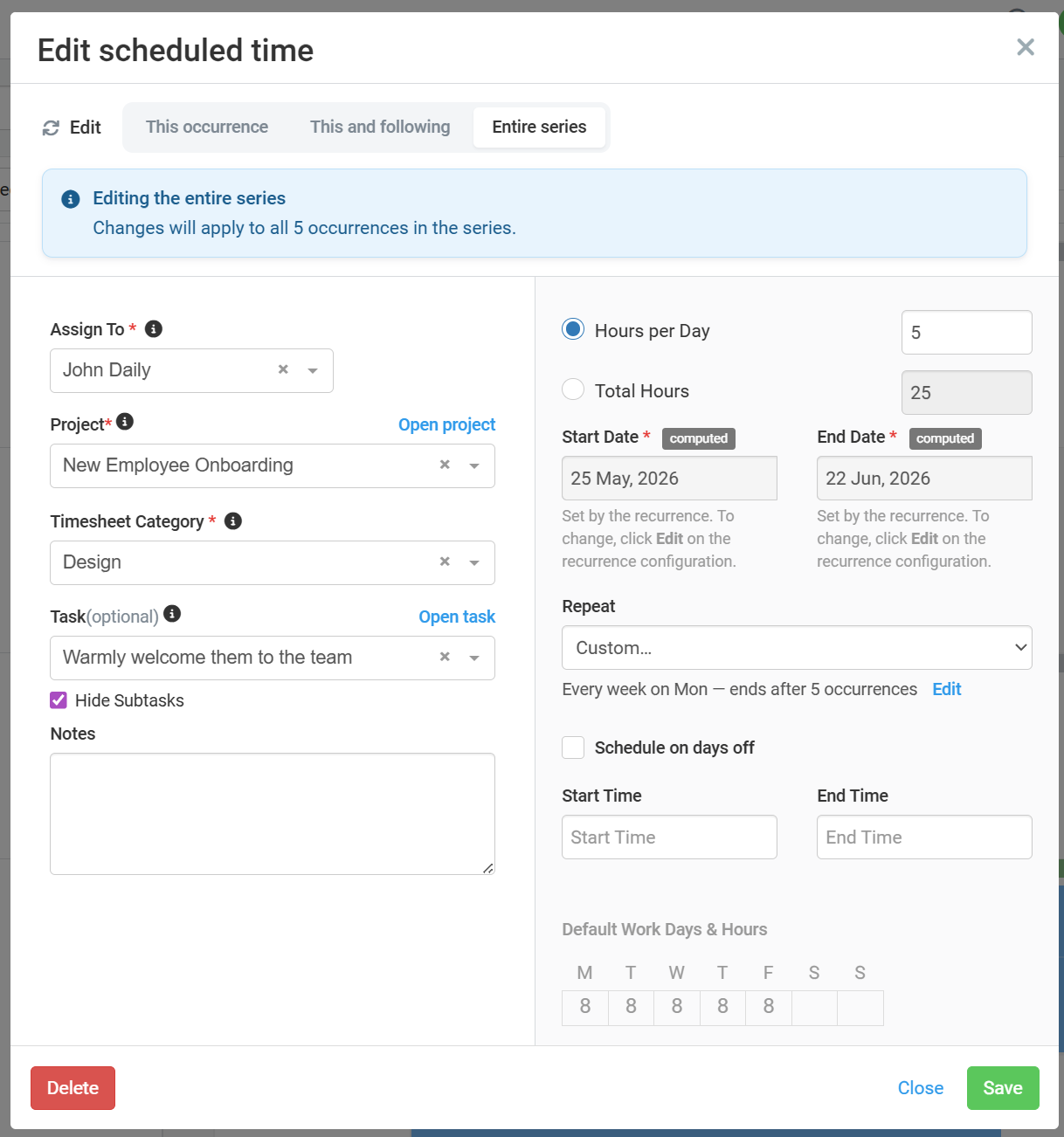
- Entire series — affects every occurrence in the series.
Each scope tab is for a different intent. Picking the right scope is important — it determines what “Save” actually saves.
5.1 This occurrence
Use this when you want to change a single occurrence without affecting the rest of the series. Examples:
- Move next Monday’s booking to Tuesday because of a public holiday.
- Increase the hours on one specific instance because that week has extra work.
- Reassign one occurrence to a different team member.
When you save changes on this tab, the occurrence is detached from the recurring series and becomes a standalone booking. The original recurring series continues unchanged on either side of it. We call this a split — see section 8 for more detail.
5.2 This and following
Use this when you want to change part of the series going forward — but not retrospectively. Examples:
- From next month onwards, the booking should be 4 hours per day instead of 2.
- From Mon 8 Jun onwards, the assignee changes from Maria to John.
- End the series two occurrences earlier than originally planned.
Under this tab you’ll see two options:
- All remaining occurrences in the series — the change applies from the clicked occurrence to the end of the series.
- The next N occurrences — the change applies to the next N occurrences only (where you pick N). Occurrences after that N keep their original configuration.
The dialog tells you up front how many occurrences will be affected, so there are no surprises.
5.3 Entire series
Use this when the change applies to the whole series from start to end. Examples:
- Change the project the series is booked against.
- Update the hours per day across all occurrences (retrospectively).
- Change the recurrence pattern itself — e.g., from weekly Mondays to weekly Tuesdays.
Save under this tab updates every occurrence in the series, including ones that have already passed. Use with care if you have time tracking already recorded against past occurrences.
5.4 Editing the recurrence pattern itself
If you want to change the pattern (frequency, weekdays, occurrence duration, end terminator), click the Edit link below the recurrence summary on the main Edit Booking dialog. This reopens the Custom Recurrence dialog with your existing configuration ready to modify.
The scope of the pattern change is governed by the tab you’re on:
- This and following: pattern change applies from the clicked occurrence forward. Earlier occurrences keep the old pattern as a separate series.
- Entire series: pattern change applies to all occurrences.
Pattern changes are not available under the This occurrence tab — that tab is only for editing one detached instance.
6. Drag and Drop
Dragging an occurrence of a recurring booking to a new date is a common shortcut, but Avaza needs to know your intent — moving a single occurrence and shifting the whole pattern are very different actions. So when you drop the occurrence on a new day, Avaza shows a prompt to confirm what you meant.
6.1 The drag-drop prompt
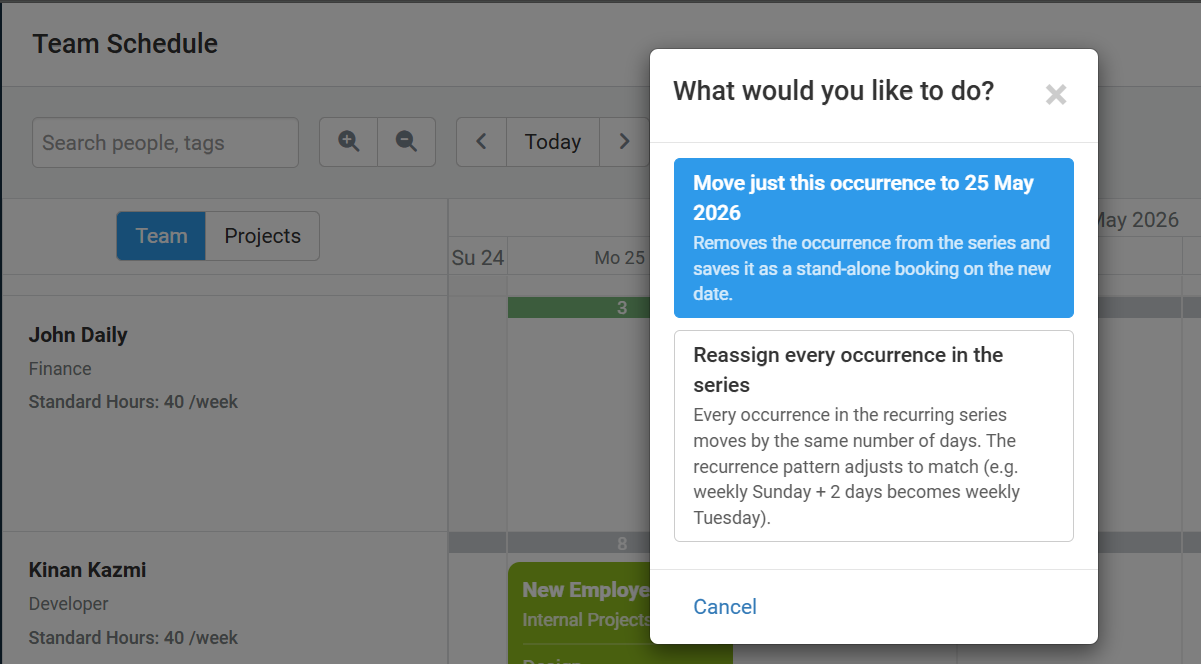
Click and hold any occurrence, drag it to a different day, and release. Avaza shows the “What would you like to do?” dialog with two choices:
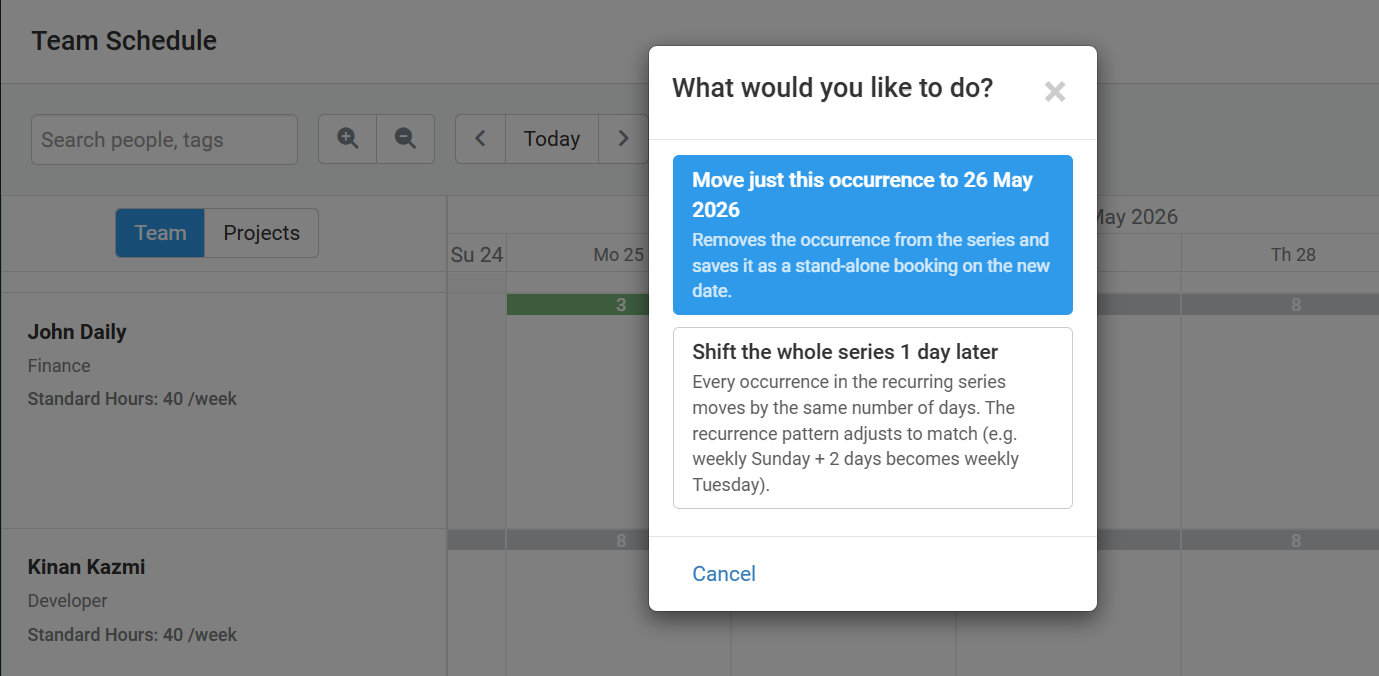
- Move just this occurrence to [target date] — Removes the occurrence from the series and saves it as a stand-alone booking on the new date. The rest of the series stays exactly where it was. This is the equivalent of editing under the This occurrence scope.
- Shift the whole series N days later (or earlier) — Every occurrence in the recurring series moves by the same number of days. The recurrence pattern adjusts to match (e.g., a weekly Sunday series shifted by 2 days becomes a weekly Tuesday series). Past occurrences are not shifted retrospectively.
Pick whichever matches what you intended, or click Cancel to undo the drag.
6.2 Drag to a different user (Team Schedule view)
You can drag an occurrence onto a different team member’s row to reassign it. As with date drags, Avaza shows a prompt so you can confirm whether to reassign just that one occurrence or shift the assignment for the whole series.
6.3 Drag versus the editing scopes
The drag-drop prompt covers the two most common drag intents. If you need finer control — for example, “move just the next 5 occurrences” or “change the assignee from this occurrence forward” — open the Edit Booking dialog and use the This and following scope instead. See section 5.2.
7. Extending an Occurrence (Resize)
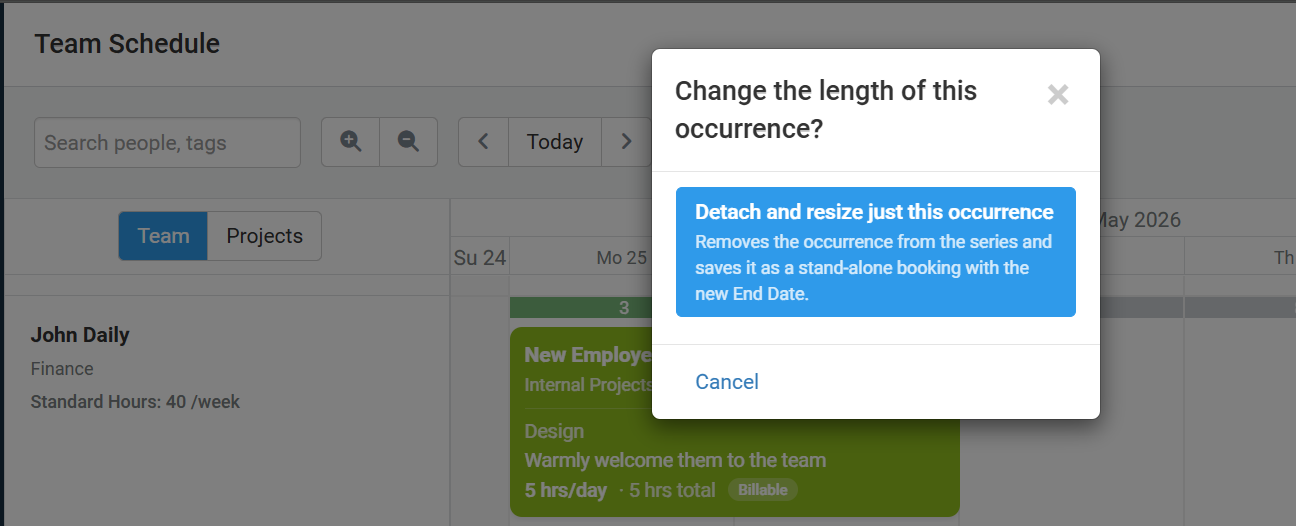
You can resize a single occurrence by dragging its left or right edge. Resizing only makes sense for one occurrence at a time — changing each occurrence lasts for the entire series isn’t something you’d do by dragging an edge — so Avaza shows a single-option confirmation to make sure that’s what you intended.
7.1 The resize prompt
Drag the left or right edge of any occurrence to the new End Date and release. Avaza shows the “Change the length of this occurrence?” dialog with one option:
- Detach and resize just this occurrence — Removes the occurrence from the series and saves it as a stand-alone booking with the new End Date. The rest of the series continues with the original Each occurrence lasts value.
Click Cancel to undo the resize, or confirm to apply the change. Either way, the resize never silently changes the duration of other occurrences in the series.
7.2 Changing the duration for the whole series
To change Each occurrence lasts for every occurrence in the series, don’t drag — open Edit Booking on any occurrence, go to the Entire series tab, click Edit on the recurrence summary, update the value, click Apply, and Save.
7.3 Examples
- A weekly 1-day Monday booking. You resize one Monday’s occurrence to cover Monday–Wednesday. Only that one occurrence becomes 3 days; the rest of the series stays at 1 day.
- A monthly 3-day occurrence. You shrink one occurrence to 2 days. Only that one occurrence shrinks; subsequent occurrences remain 3 days.
8. Splitting Occurrences
Splitting is the broader concept of an occurrence (or a portion of a recurring series) breaking off from the recurring pattern. Splits happen automatically in some flows, and you can also trigger them explicitly from the right-click menu when you want precise control.
8.1 Automatic splits
These actions automatically split an occurrence from its recurring series:
- Editing under the This occurrence tab and saving any change.
- Confirming a drag-drop with the “Move just this occurrence” option.
- Confirming a resize via the “Detach and resize just this occurrence” prompt.
After an automatic split, the original recurring series continues unchanged, and the modified occurrence becomes a standalone booking (no recurring icon).
8.2 Explicit Split via right-click
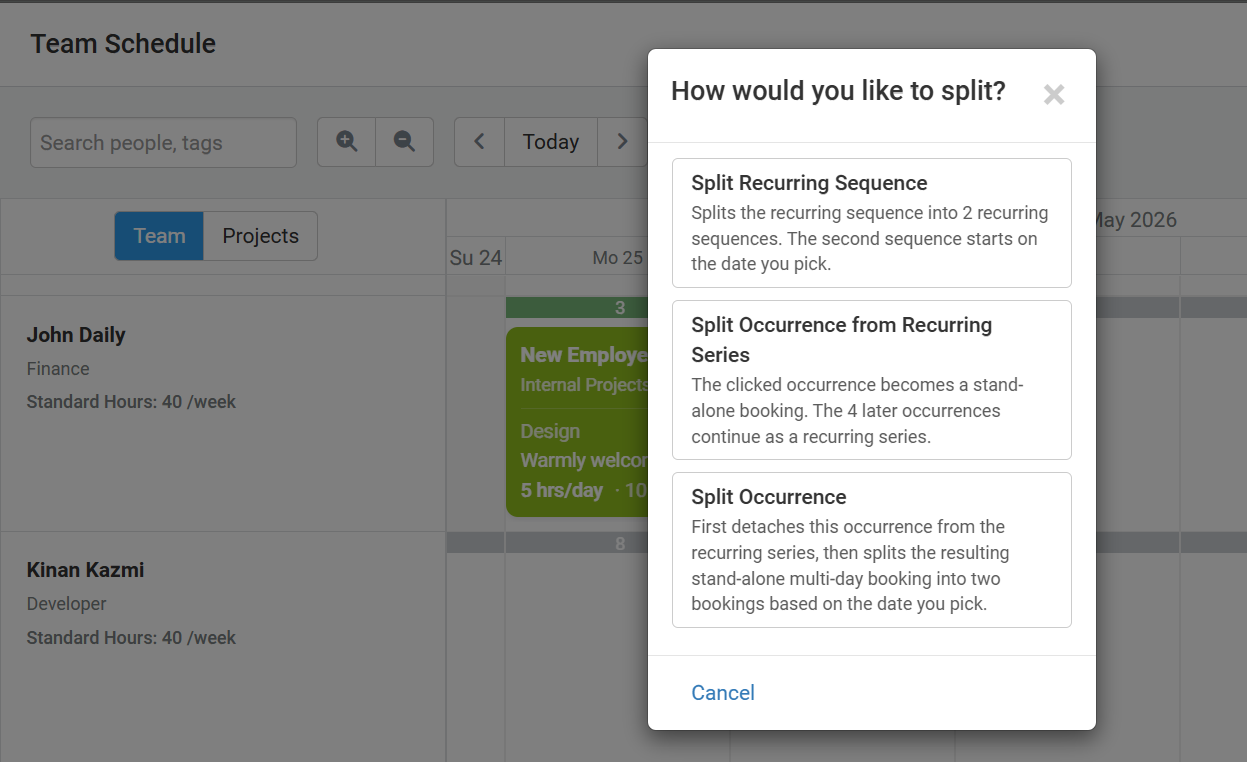
Right-click any occurrence of a recurring series and choose Split. Avaza shows the “How would you like to split?” dialog with three options. Each does something different, so pick the one that matches your intent:
Split Recurring Sequence
Splits the recurring sequence into 2 recurring sequences. The second sequence starts on the date you pick.
Use this when you want to change something about the pattern mid-stream but keep the recurring nature on both sides. For example: keep the existing weekly Monday pattern up to a certain date, then continue as a new weekly Monday series afterwards — useful as a setup step before applying different edits to the two halves.
Split Occurrence from Recurring Series
The clicked occurrence becomes a stand-alone booking. Earlier occurrences (if any) also become stand-alone bookings. The later occurrences continue as a recurring series.
Use this to peel the clicked occurrence (and everything before it) out of the recurring pattern, while keeping later occurrences on the original pattern. Handy when historical occurrences need different handling from future ones.
Split Occurrence
First detaches the clicked occurrence from the recurring series, then splits the resulting stand-alone multi-day booking into two bookings based on the date you pick.
Use this to split a single multi-day occurrence into two parts — for example, split a 5-day occurrence into a 2-day and a 3-day segment because the work changes partway through.
Click Cancel to close the dialog without splitting. For all three options, the recurring icon stays on occurrences that remain part of a recurring series, and disappears from any that become standalone.
9. Recurring Leave Bookings
Recurring bookings work the same way for Leave records as for Assignment records. To create recurring leave:
- Open Add Booking and switch to the Leave tab.
- Pick the leave type (e.g., Holiday, Sick, etc.).
- Set the Repeat dropdown to Custom and configure the pattern as you would for any recurring booking.
- Click Apply, then Save.
Common scenarios for recurring leave:
- A team member working a 4-day week with every Friday off: weekly recurrence on Fri, ending on or before their contract end date.
- An annual leave block: yearly recurrence covering the same week each year.
- A standing half-day every fortnight: bi-weekly recurrence, Each occurrence lasts 1 day with hours per day set to a half.
10. Frequently Asked Questions
Can I have a recurring booking that doesn’t end?
No — every series needs an end terminator (After N occurrences or On date), capped at 200 occurrences. We recommend setting the terminator to the actual scope of the work or contract.
What happens if I delete a recurring booking?
When you click Delete on a recurring booking, Avaza asks which scope you want to delete: This occurrence, This and following, or Entire series. Same scope model as editing.
Can I make one occurrence longer than the rest of the series?
Yes — resize the occurrence (or edit it under This occurrence) and change the duration. The occurrence becomes a detached standalone booking with its own duration; the rest of the series keeps the original Each occurrence lasts value.
What if my recurrence pattern would create overlapping occurrences?
Avaza detects this and shows a warning in the Custom Recurrence dialog before you can save. You’ll need to either reduce the occurrence duration, change the frequency, or change the days selected so occurrences don’t overlap.
How do recurring bookings show up in reports?
Each individual occurrence appears in reports as if it were a regular booking. There’s no separate “recurring” report category — recurring is just how the bookings were created.
Can I copy a recurring series from one project to another?
Not directly. The simplest workaround is to open Edit Booking on the original series under Entire series, change the project, and save. To keep both, set up a new recurring series with the same pattern under the new project.
11. Quick Reference
| I want to… | What to do |
|---|---|
| Create a recurring booking | Add Booking → Repeat → Custom → Configure → Apply → Save. |
| Change one occurrence’s date | Drag it to the new day → choose “Move just this occurrence”, OR Edit Booking → This occurrence → change date → Save. |
| Shift the whole series by N days | Drag any occurrence to a new day → choose “Shift the whole series N days later (or earlier)”. |
| Reassign one occurrence to another user | Drag it onto the other user’s row → choose “Move just this occurrence”. |
| Change all future occurrences | Edit Booking → This and following → All remaining → make changes → Save. |
| Change the next N occurrences only | Edit Booking → This and following → The next N occurrences → set N → make changes → Save. |
| Change everything in the series | Edit Booking → Entire series → make changes → Save. |
| Change the recurrence pattern | Edit Booking → Entire series (or This and following) → click Edit on the recurrence summary → modify → Apply → Save. |
| End the series earlier | Edit Booking → Entire series → Edit recurrence → reduce the After N count or set an earlier On date → Apply → Save. |
| Delete one occurrence | Click the occurrence → Delete → choose This occurrence. |
| Delete the whole series | Click any occurrence → Delete → choose Entire series. |
| Make a single occurrence longer | Drag its right edge → confirm “Detach and resize just this occurrence”, OR Edit Booking → This occurrence → change end date → Save. |
| Make every occurrence longer | Edit Booking → Entire series → Edit recurrence → increase Each occurrence lasts → Apply → Save. |
| Split a series into two recurring series | Right-click an occurrence → Split → Split Recurring Sequence → pick start date for second series. |
| Peel an occurrence (and earlier ones) out of the series | Right-click the occurrence → Split → Split Occurrence from Recurring Series. |
| Split one multi-day occurrence into two bookings | Right-click the occurrence → Split → Split Occurrence → pick split date. |
| Set up recurring leave | Add Booking → Leave tab → choose leave type → Repeat → Custom → configure → Apply → Save. |
12. Need More Help?
If you have questions or run into something this guide doesn’t cover, get in touch with our support team through the chat in your Avaza account. We’d also love to hear how you’re using recurring bookings — your scenarios help us improve the feature in future releases.