
If a team member or external contact loses access to their authentication app or the email address used for verification codes, an Admin can reset their Multi-Factor Authentication (MFA) so they can set it up again on their next sign-in.
This article explains when and how to reset MFA, what happens afterward, and important security considerations.
When Should You Reset MFA?
You may need to reset MFA if the user:
- Has lost or replaced their mobile device
- Deleted or reset their authentication app
- No longer has access to the email address used for verification codes
- Is unable to complete the MFA verification step during login
⚠️ Only reset MFA after verifying the user’s identity.
Who Can Reset MFA?
- Only Admins can reset MFA.
- MFA can only be reset for users who have accepted their Avaza invitation.
- The option is only visible if the user currently has MFA configured.
If MFA is not enabled for the user, the reset option will not appear.
Where to Reset MFA
You can reset MFA from:
- Team > Team Members
- Contacts > External Contacts
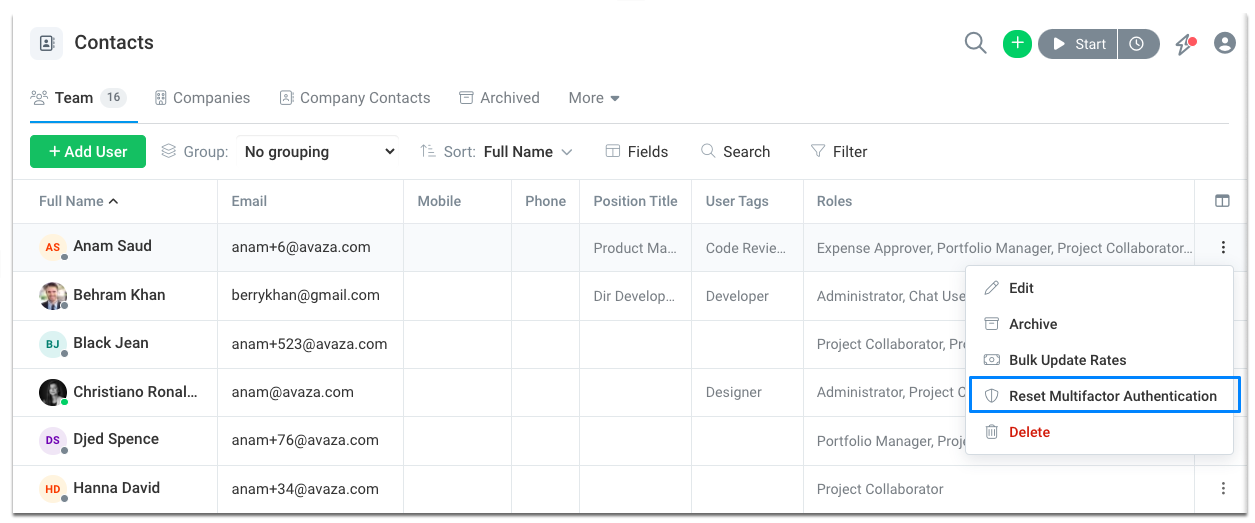
Each user row includes a 3-dot menu with available actions.
How to Reset MFA
- Go to the Team or External Contacts user list.
- Locate the user.
- Click the 3-dot menu on their row.
- Select Reset Multi-Factor Authentication.
- Review the confirmation message.
- Click Reset MFA to proceed.
Confirmation Message
When you select the reset option, you will see:
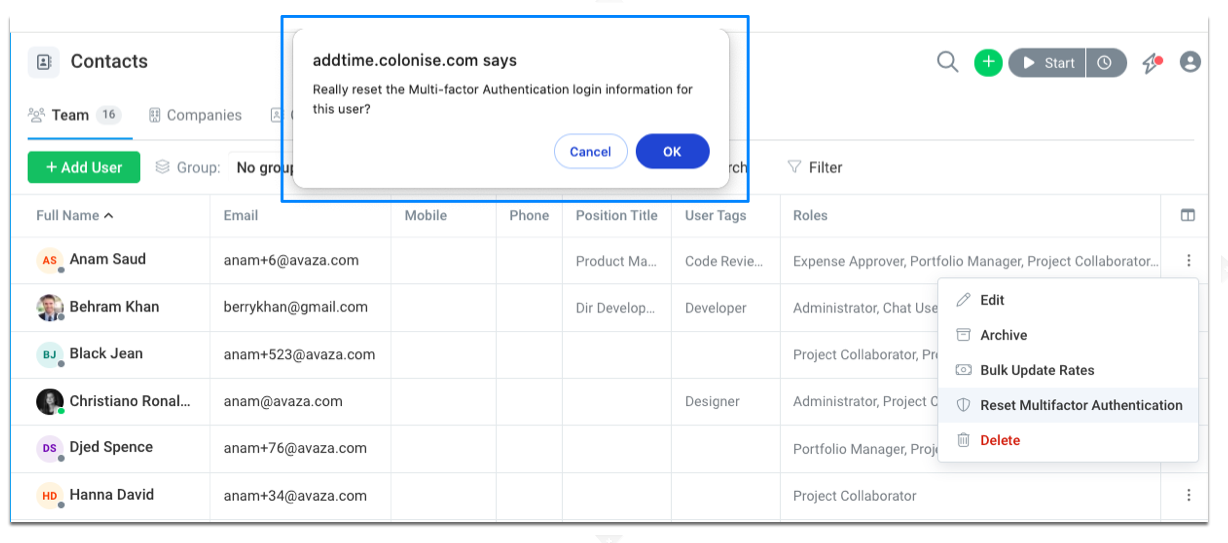
Really reset the Multi-factor Authentication login information for this user?
You can choose:
- OK (confirm)
- Cancel
What Happens After Reset?
- The user’s existing MFA configuration is permanently removed.
- All MFA records for that user are deleted.
- The next time the user signs in, they will be required to set up MFA again.
- The user receives an email notification informing them that an Admin has reset their MFA.
This email ensures transparency and security awareness.
Security Best Practices
Before resetting MFA:
- Confirm the request directly with the user.
- Verify their identity through known contact details.
- Ensure the request is legitimate and not part of a social engineering attempt.
Resetting MFA removes an important security layer. Always proceed with caution.
Frequently Asked Questions
Why don’t I see the Reset MFA option?
The option will only appear if:
- You are an Admin.
- The user has accepted their invite.
- The user currently has MFA configured.
If MFA is not enabled, the option will not be shown.
Can users reset MFA themselves?
No. Only Admins can reset MFA for security reasons.
If you continue experiencing login issues after resetting MFA, please contact Avaza Support for further assistance.