
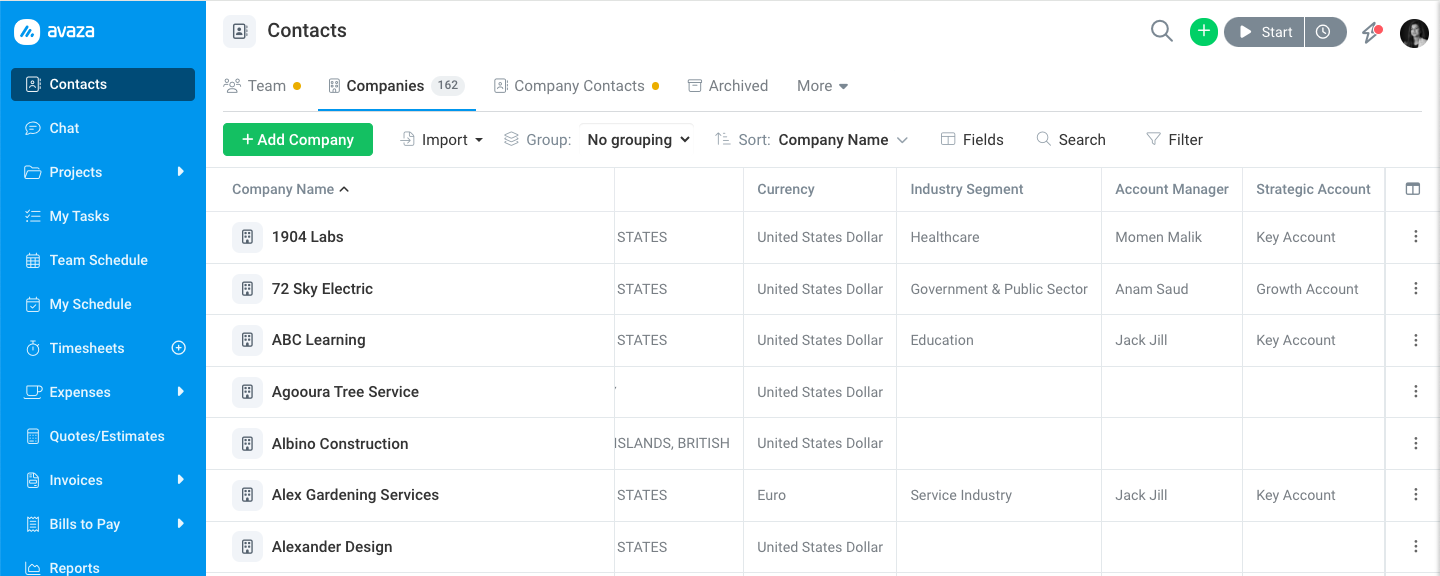
Custom Fields are no longer limited to Projects and Tasks. You can now add your own fields to Team Members, Company Contacts and Companies. Typical uses include employee IDs, departments, account managers, client references, NDA status and industry segments. These fields appear on the add and edit forms for each record. On the Contacts page you can use them as columns, filters, sorting and grouping.
This article covers the three new record types. To turn the feature on, learn the field types, or archive and restore fields, see the main Custom Fields article first.
Before you start
- Custom Fields must be enabled for your account under Settings > Custom Fields. The feature is available on paid plans.
- Only Account Administrators can create and edit field definitions. Anyone who can edit a team member, contact or company can fill in the values.
1. Create a field for Team Members, Company Contacts or Companies
- Go to Settings > Custom Fields and click Add Custom Field.
- Enter a field name and choose the field type (text, number, date, dropdown, checkbox, user, location and so on). The type can’t be changed after the field is created.
- Under Show on, tick Team Member, Company Contact and/or Company. One field can be shown on several record types. For example, a “Region” dropdown can be shown on both Companies and Company Contacts.
- To make the field mandatory for a record type, click the Optional tag next to that record type’s name. It switches to Required. This setting is per record type, so a field can be required on Companies and optional on Company Contacts.
- Set a default value if you want new records pre-filled. User-type fields don’t support defaults.
- Choose the visibility: Internal (only your team members can see the field) or Everyone (customer contacts can also see the field where they have access to the record).
- Tick the Available in Filters / Sorting / Grouping options you want for this field on the Contacts page.
- Click Save.
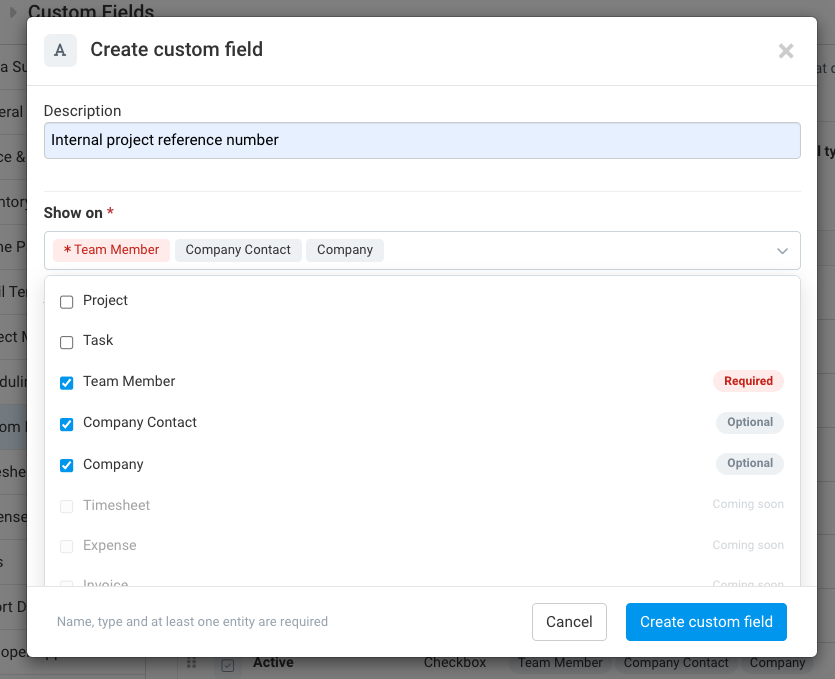
Note: the Project scope option (“Only selected projects”) applies only to Project and Task fields. Team members, contacts and companies don’t belong to a single project, so their fields always apply account-wide.
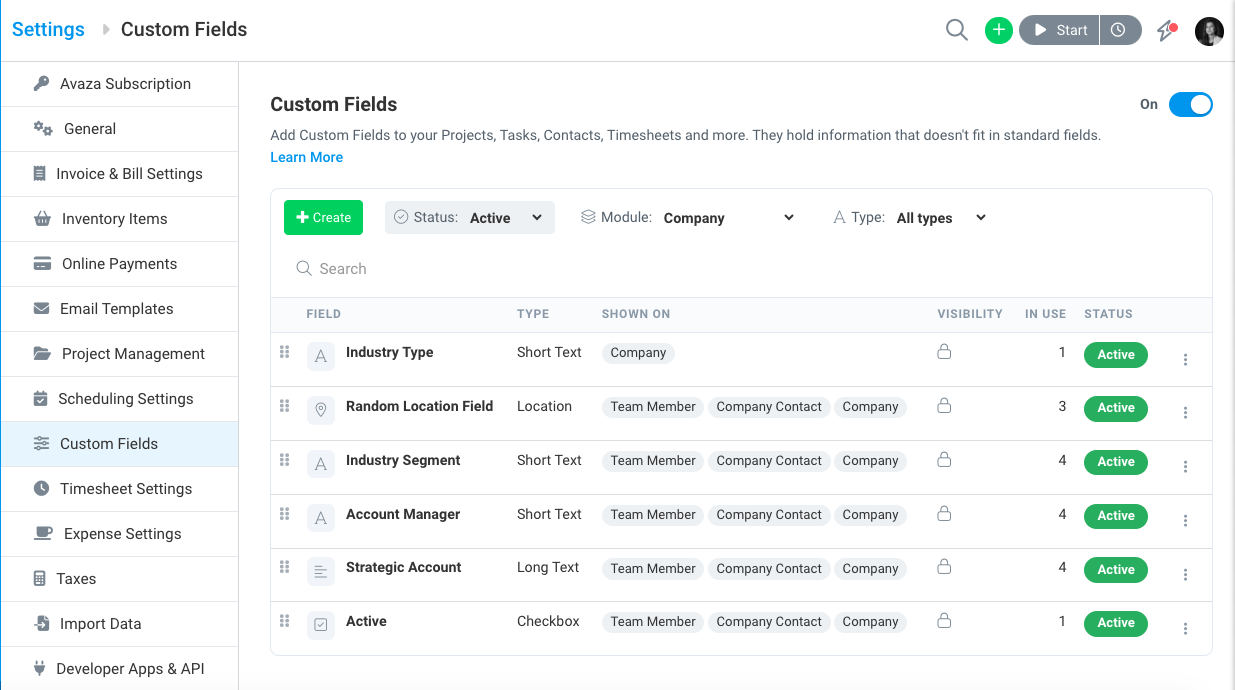
Use the Module filter at the top of the Custom Fields list to see only the fields for one record type.
2. Custom fields on Team Members
Adding a team member
- Go to Contacts > Team and click Add Team Member.
- Fill in the standard details as usual.
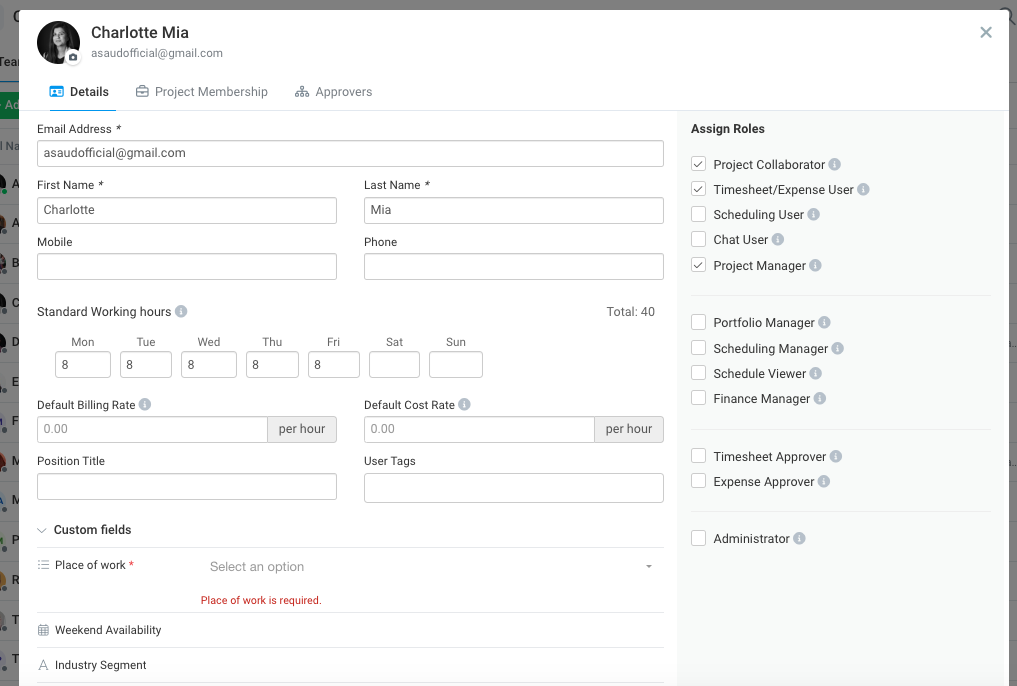
- Scroll to the Custom fields section at the bottom of the form, below the project assignment area. Expand it to enter values.
- Click Save.
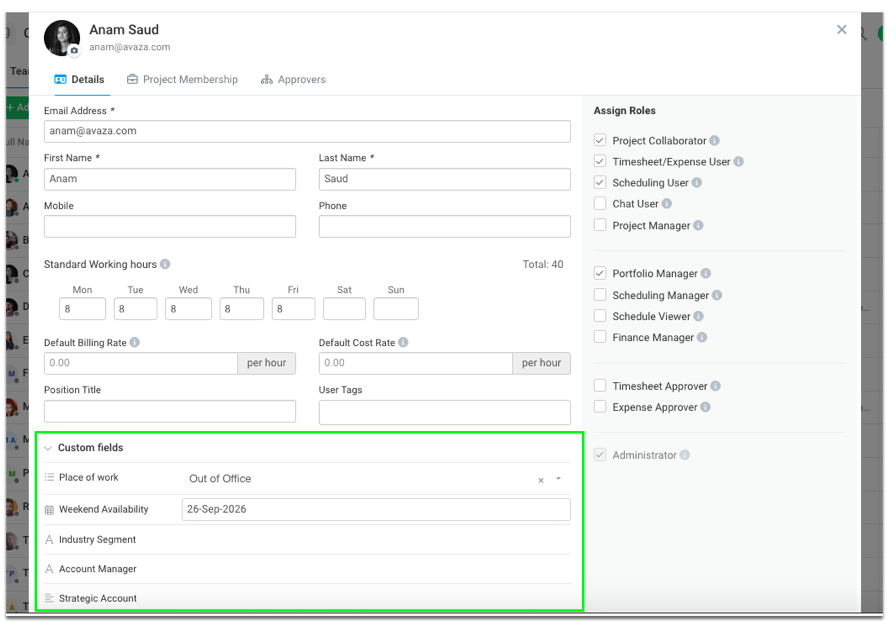
Default values are applied even if you never open the section. If a required field is empty, the section expands automatically and highlights the field, and the team member is not created until you fill it in. The error clears as soon as you enter a value.
Editing a team member
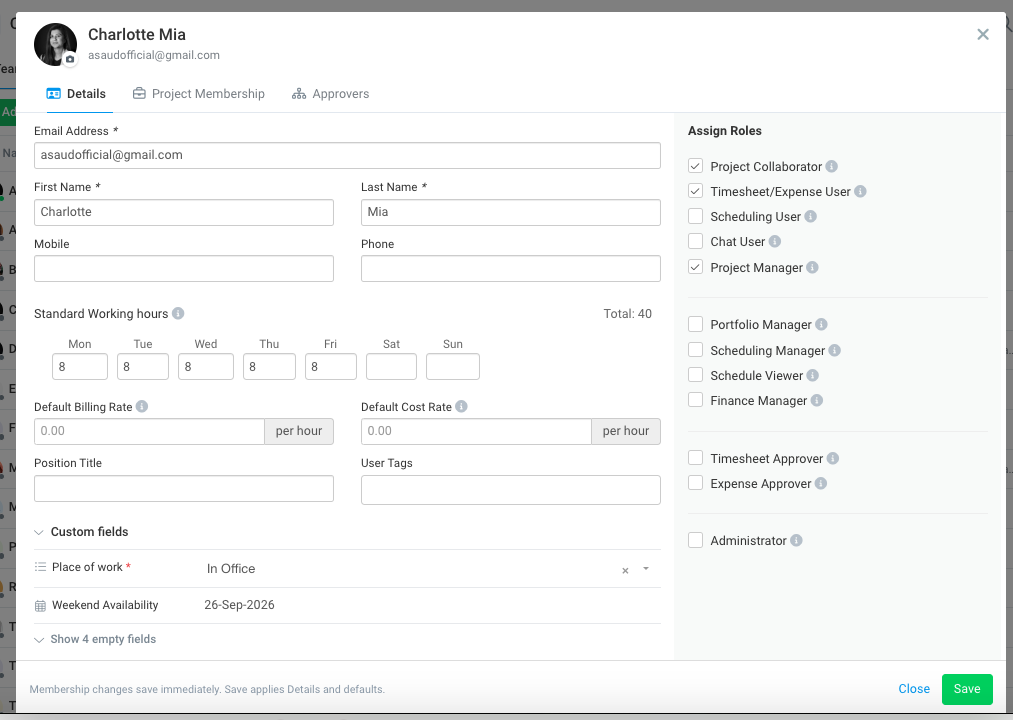
- Open the team member and stay on the Details tab.
- In the Custom fields section, fields that already have a value are listed first. Click Show N empty fields to reveal the rest.
- Change or clear values, then click Save.
3. Custom fields on Company Contacts
Company Contacts work the same way as Team Members. The Custom fields section sits at the bottom of Add External Contact. On Edit External Contact it is on the Details tab, again with populated fields first and a Show N empty fields link.
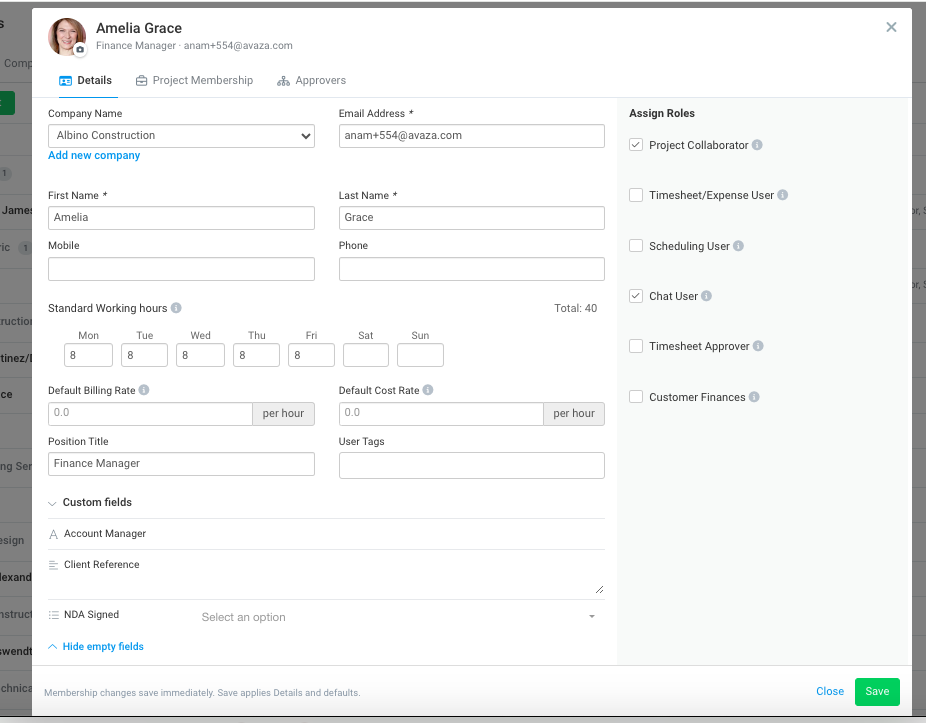
If you create a new company while adding a contact (using the Add new company link), that company’s required custom fields are validated as part of the same save.
4. Custom fields on Companies
Adding a company
- Go to Contacts > Companies and click Add Company.
- Complete the company details, then expand Custom fields at the bottom of the form.
- Click Save.
Viewing and editing on the Company Details page
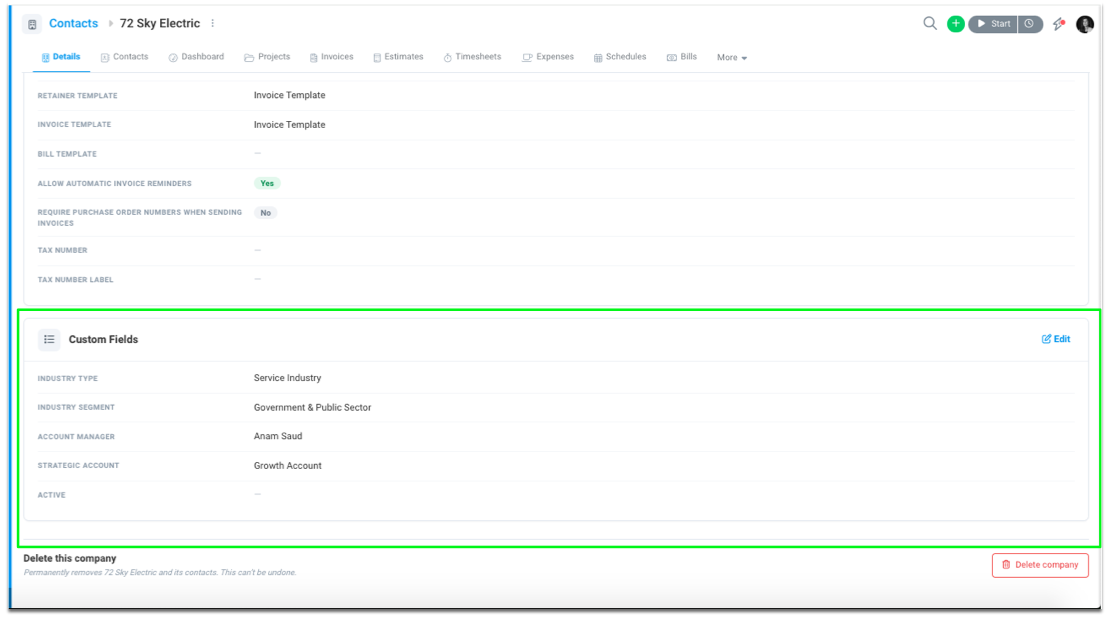
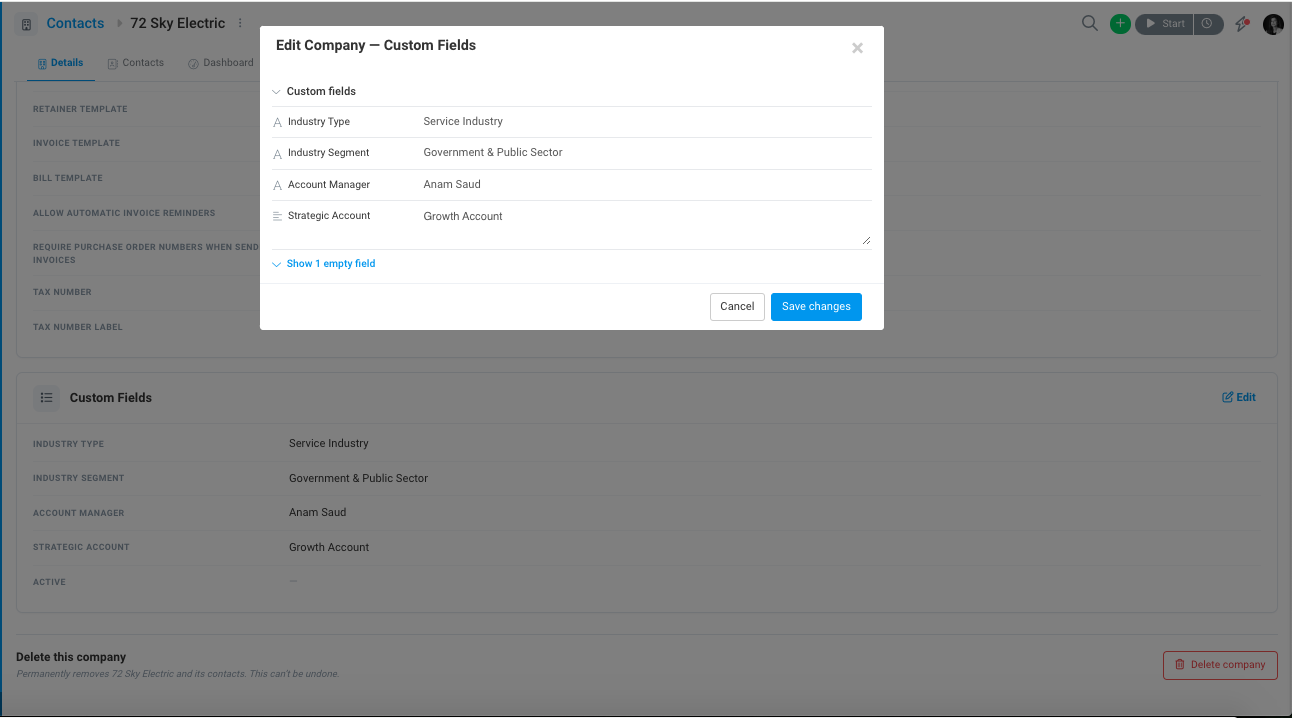
- Open the company. The Custom Fields panel appears after Saved Payment Methods. If no Company fields exist yet, the panel is hidden.
- Values are shown read-only, like the other panels on this page. Fields visible to Everyone are marked with a globe icon.
- Click Edit on the panel to open Edit Company – Custom Fields, update the values and click Save. The panel refreshes immediately.
5. Use custom fields in your Contacts views
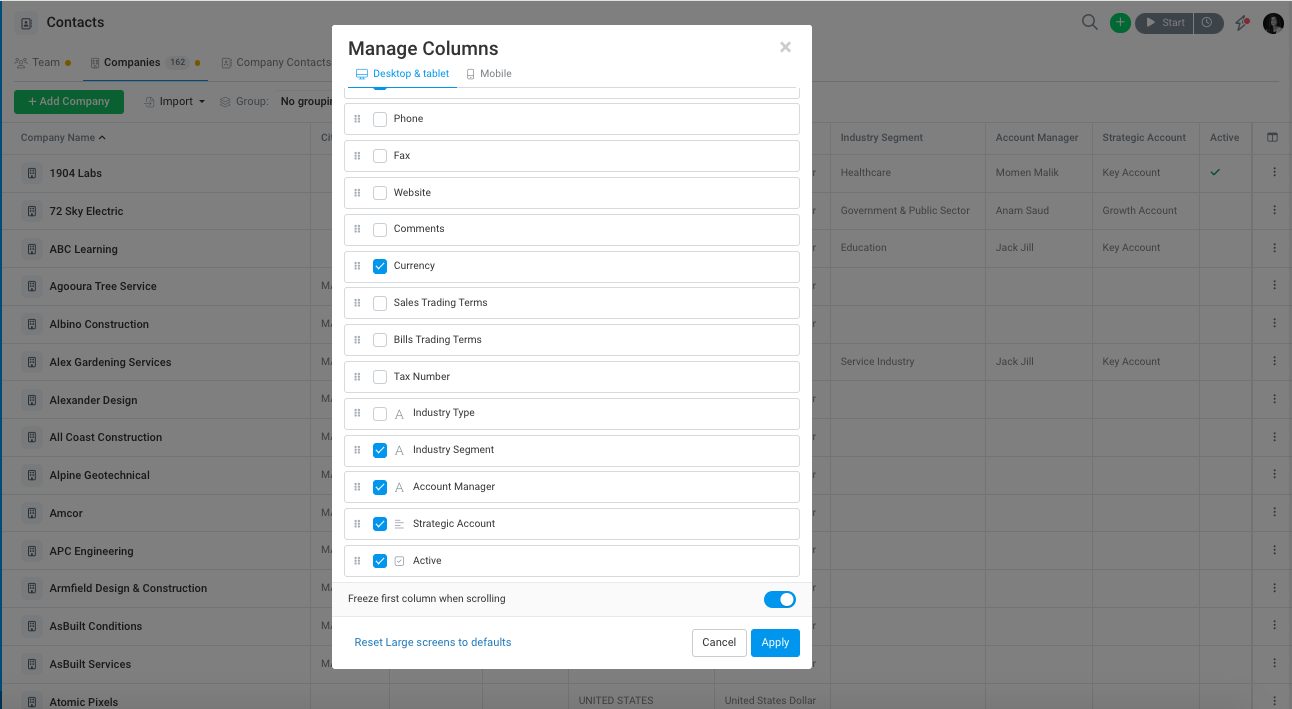
On the Team, Company Contacts and Companies tabs of the Contacts page, and on the Contacts tab inside a company, you can use custom fields in these ways:
- Columns: open Manage Columns and tick the custom fields you want. They’re shown with a data-type icon so you can tell them apart from standard fields. Values are formatted by type: numbers with their unit and thousands separator, users with avatars, checkboxes, dates and locations.
- Filters: fields marked Available in Filters appear in the filter list with operators suited to their type, including “is empty” and “is not empty”.
- Sorting: fields marked Available in Sorting appear in the Sort dropdown.
- Grouping: single-selection dropdown, checkbox and single-user fields marked Available in Grouping can be used to group the list.
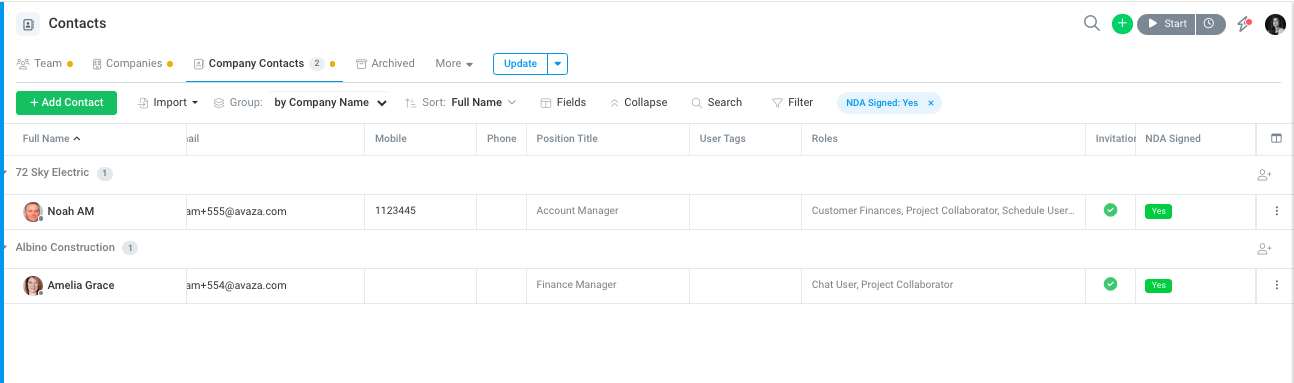
Save the view to keep your columns, filters, sort and grouping. If a field is later archived, it disappears from the pickers, and saved views that used it still load normally.
6. How values are displayed
- Currency fields show the currency symbol next to the field name, not the value, so you can enter an amount in any currency.
- Duration fields are entered and shown as h:mm (for example 33:00).
- User fields list active team members, plus invited users who haven’t yet accepted (marked “Invited”). If a selected user is later deactivated, the value stays and shows as “(inactive)”.
- Setting a User field never assigns work, sends notifications or changes permissions. It’s information only.
7. API, webhooks and AI assistants
- API: GET, POST and PUT on Company, Contact and UserProfile include a CustomFields collection, in the same shape as Tasks and Projects. On PUT, include “CustomFields” in FieldsToUpdate to change values. Only the fields you list are touched.
- Webhooks: company_*, contact_* and team_member_* payloads include CustomFields.
- Avaza MCP: create_contact, create_company and update_company accept custom field values, and the get and list tools return them. Use list_custom_fields to discover the available fields.
Field definitions and dropdown options can only be managed in Settings > Custom Fields, not through the API.
8. Frequently asked questions
Why don’t I see a Custom fields section on the form?
Check that the feature is enabled, that the field’s Show on includes that record type, and that the field isn’t archived. On the Company Details page the panel stays hidden until at least one Company field exists.
Why can’t I choose a Project scope for a Team Member, Contact or Company field?
These records aren’t tied to a single project, so project scoping doesn’t apply.
Can customer contacts see these fields?
Only fields set to Everyone. Internal fields are never shown to customer contacts.
Do I have to fill in a new required field on existing records straight away?
No. Existing records aren’t changed. You’ll be asked for the value the next time you edit and save that record.
What happens when I delete a contact or company that has values?
The values are removed with the record. Nothing else is affected.
Can I import custom field values for contacts and companies by CSV?
Not yet. This will arrive with the upcoming Import Data upgrade.
Can I find contacts or companies by a custom field value in global search?
Not yet. Use filters on the Contacts page instead.