
Getting Started Guide
Connect your AI assistant to Avaza — manage projects, tasks, time, expenses, and invoicing through natural language.
1. What is the Avaza MCP Server?
The Avaza MCP Server implements the open Model Context Protocol (MCP) standard, allowing AI assistants such as Claude and ChatGPT to communicate directly with your Avaza account. Instead of switching between your AI chat window and Avaza, you can give plain-language instructions and let your AI assistant take action on your behalf.
With the Avaza MCP Server you can:
- Create, update, and query projects and tasks
- Log time entries and manage timesheets
- Record and submit expenses
- Generate and review invoices and estimates
- Schedule team members and manage resource bookings
- Retrieve reports on utilisation, and billing — all through conversation
| ℹ️ How It Works Your AI assistant connects to Avaza through a secure MCP endpoint. Every request is authorised with OAuth 2.0, so only you can grant access to your account, and you can revoke it at any time from your Avaza settings. |
2. Before You Begin
Make sure you have the following ready before connecting:
| Requirement | Details |
|---|---|
| Avaza account | Any paid Avaza plan. |
| AI client | Claude (claude.ai) or ChatGPT (chat.openai.com) or any AI client with MCP connector support |
| MCP server URL | https://mcp.avaza.com/mcp |
| Browser | A modern browser to complete the OAuth authorisation step |
3. Connecting to Claude (claude.ai)
Follow these steps to add the Avaza MCP Server as a connector inside Claude.
- Open Claude Integrations
Sign in to claude.ai. Click your profile icon, then choose Settings. - Add a new MCP connector
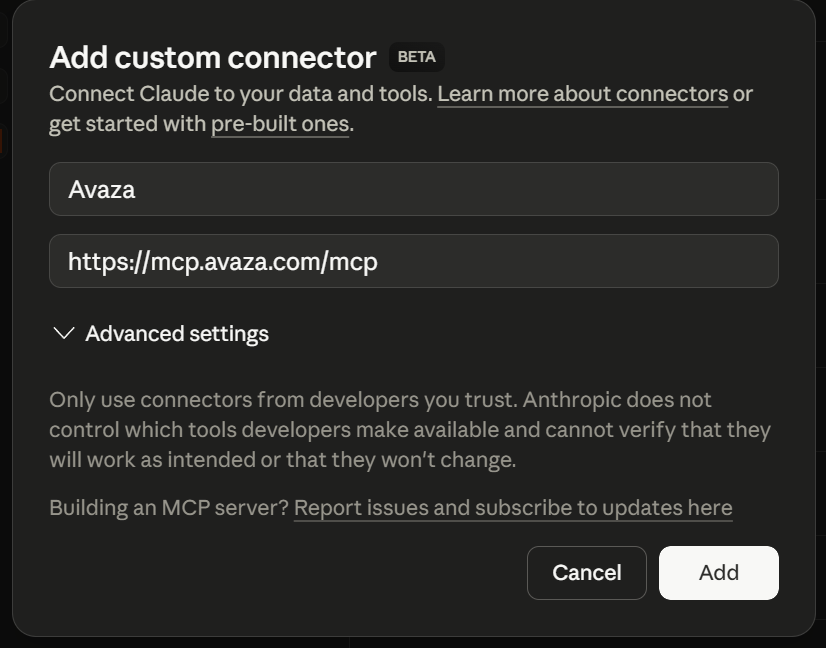
In the left sidebar select Connectors. Click Add custom connectors - Enter the Avaza MCP URL
When prompted for the server URL, paste:
https://mcp.avaza.com/mcp
Give it a friendly name such as Avaza, then click Add.
- Authorise with OAuth
A browser pop-up will open asking you to log in to Avaza. Enter your Avaza credentials and click Allow Access. - Confirm the connection
Back in Claude, the Avaza connector should show a Connected status. You are ready to go — try a message like “Show me my overdue tasks in Avaza”.
4. Connecting to ChatGPT (chat.openai.com)
ChatGPT supports MCP connectors through its Actions and Connectors settings. The steps below apply to ChatGPT Plus, Team, and Enterprise accounts.
- Open ChatGPT Integrations
Sign in to chat.openai.com. Click your name or avatar (bottom-left), then select Settings. - Navigate to Apps
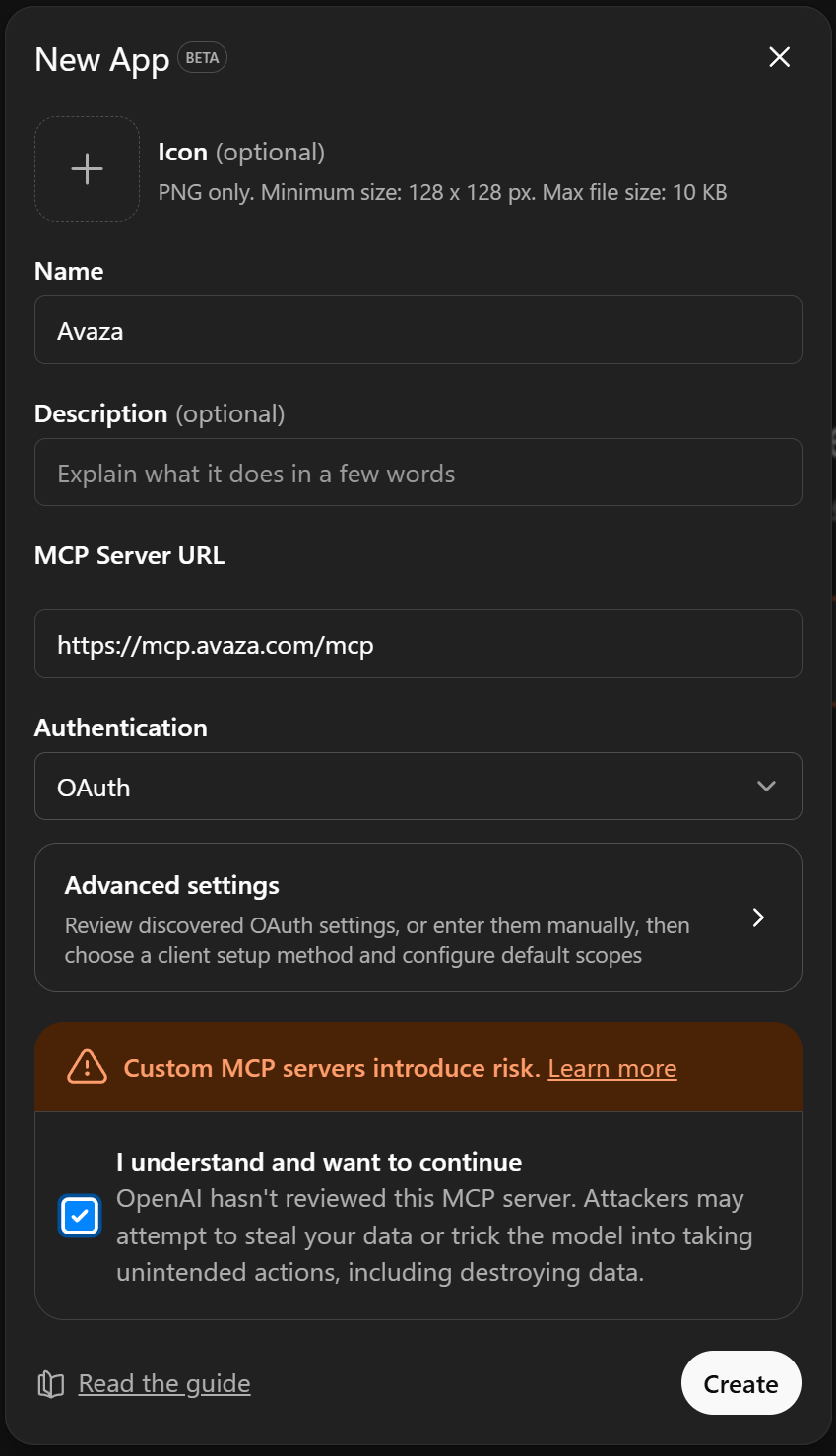
Select the Apps tab - Add a Custom MCP Server
Click Create app, then paste the server URL in the MCP Server URL field
https://mcp.avaza.com/mcp
Label the connector Avaza and click Save.
- Complete the OAuth flow
ChatGPT will redirect you to the Avaza login page. Log in and click Allow Access to grant
ChatGPT permission to use your Avaza account. You will be redirected back to ChatGPT automatically. - Start a conversation
Open a new chat in ChatGPT and enable the Avaza connector in the tools panel. Try: “List top 3 projects in Avaza” to confirm everything is working.
5. OAuth Authorisation & Security
Avaza uses the OAuth 2.0 authorisation framework to securely connect AI clients to your account. No passwords are ever shared with Claude or ChatGPT — only a short-lived access token is issued.
Key security points:
| Topic | Detail | |
|---|---|---|
| 🔒 | No password sharing | Your Avaza password is entered on Avaza’s own login page — it is never transmitted to or stored by Claude or ChatGPT. |
| 🔑 | Access tokens | Avaza issues a scoped OAuth token. If a token is compromised it can be revoked without changing your password. |
| 👤 | Per-user authorisation | Each Avaza user must authorise independently. One team member granting access does not grant access on behalf of others. |
6. What You Can Do with the Avaza MCP Server
Once connected, your AI assistant has access to the full breadth of Avaza’s functionality. The table below summarises the key capability areas.
| Area | Example Instructions |
|---|---|
| Projects & Tasks | “Create a task called Design Review in the Website Redesign project.” “Show me all overdue tasks assigned to me.” |
| Time Tracking | “Log 2 hours against the Support Integration project for today.” “What did I log time on this week?” |
| Expenses | “Add a $45 expense for a client lunch under the Entertainment category.” “Show all unbilled expenses this month.” |
| Invoicing | “Generate a draft invoice for Acme Corp for Marketing Services for $2000.” “List all overdue invoices.” |
| Resource Scheduling | “Book Alice for 6 hours a day on the API project next week.” “Show team availability for next Monday.” |
| Reporting | “Summarise billable hours by project for this month.” “What is the total revenue scheduled for next month?” |
7. Troubleshooting
| Problem | Solution |
|---|---|
| OAuth window does not open | Ensure your browser allows pop-ups from claude.ai or chat.openai.com. Disable any pop-up blocker for these domains and try again. |
| “Could not connect to MCP server” error | Double-check the URL is entered exactly as: https://mcp.avaza.com/mcp (no trailing slash). Also verify your internet connection can reach mcp.avaza.com. |
| Authorisation fails after login | Make sure you are logging in with the correct Avaza account. |
| AI assistant says it cannot find a project or task | Confirm the item exists in Avaza and that your Avaza user has permission to view it. The AI assistant respects Avaza’s role-based access controls. |
| Connection works but then stops after a few days | OAuth tokens expire periodically. Re-connect by clicking the Avaza connector in your AI client and completing the OAuth flow again. |
8. Tips for Best Results
- Be specific with names — refer to projects and tasks using their exact Avaza names to avoid ambiguity.
- Confirm before bulk actions — if asking your AI assistant to create many records, ask it to show you a preview first.
- Use date context — phrases like “this week”, “last month”, or specific dates (e.g., “April 14, 2026”) help the assistant filter results accurately.
- Combine capabilities — you can ask multi-step questions such as “Log 3 hours on Project X and then show me the updated timesheet summary for the week.”
9. Getting Help
If you experience issues not covered in this guide, our support team is here to help.
| Channel | Details |
|---|---|
| Help Centre | support.avaza.com — searchable articles and video walkthroughs |
| In-app Chat | Click the chat bubble (bottom-right) inside Avaza to reach our support team |
| support@avaza.com |