
Custom Views let you save any combination of filters, columns, sorting, and grouping as a named view — and switch between your saved views with one click. Set up “My overdue tasks” or “Client review board” once, and it’s waiting for you every time.
Custom Views are available on the Project Tasks, My Tasks, All Tasks, and All Projects pages, with more pages coming soon.
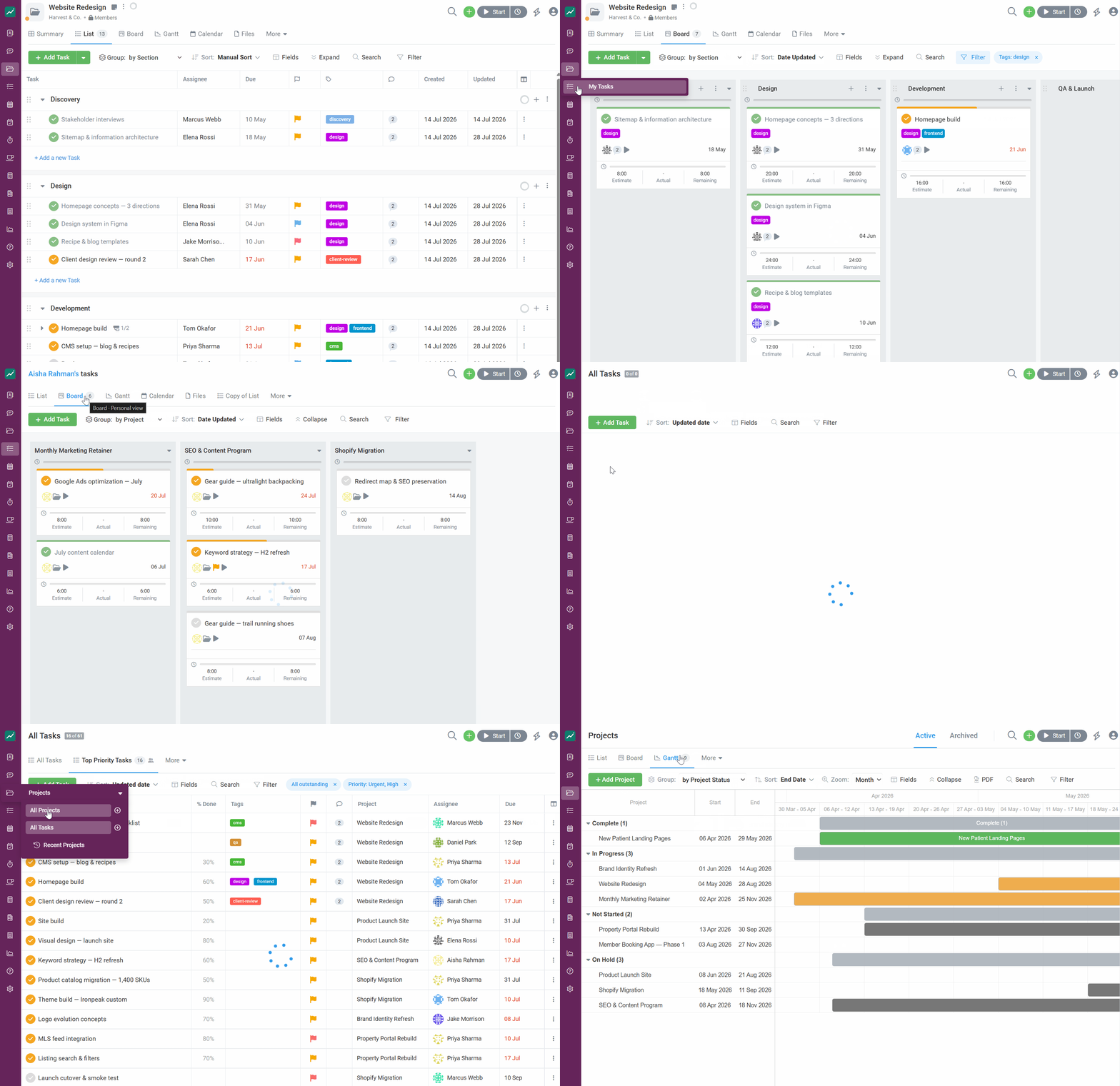
A quick tour of the new layout
These pages now share one consistent layout:
- The view bar sits at the top of the page. Every tab is a view — switch views by clicking a tab, and add new ones with the + button. Each tab’s icon shows its layout type (list, board, Gantt, calendar), and the active tab shows the number of items in the view.
- The toolbar below it holds your tools for the current view: Add Task (or Add Project), Group, Sort, Fields, search — and your active filters.
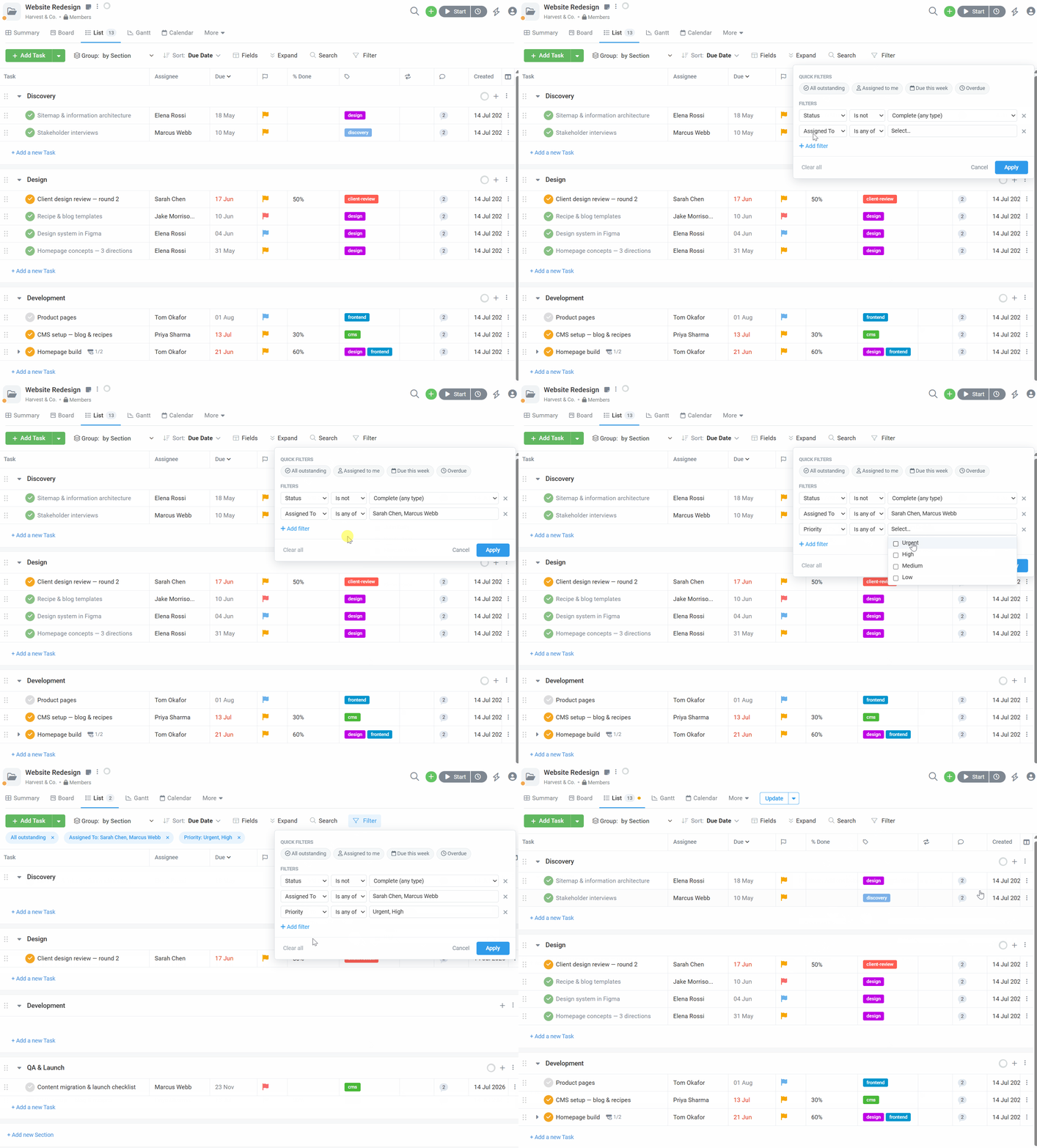
- Your active filters are always visible on the toolbar. No more opening a dialog to check what’s filtering your list — and any filter can be removed by clicking its ×.
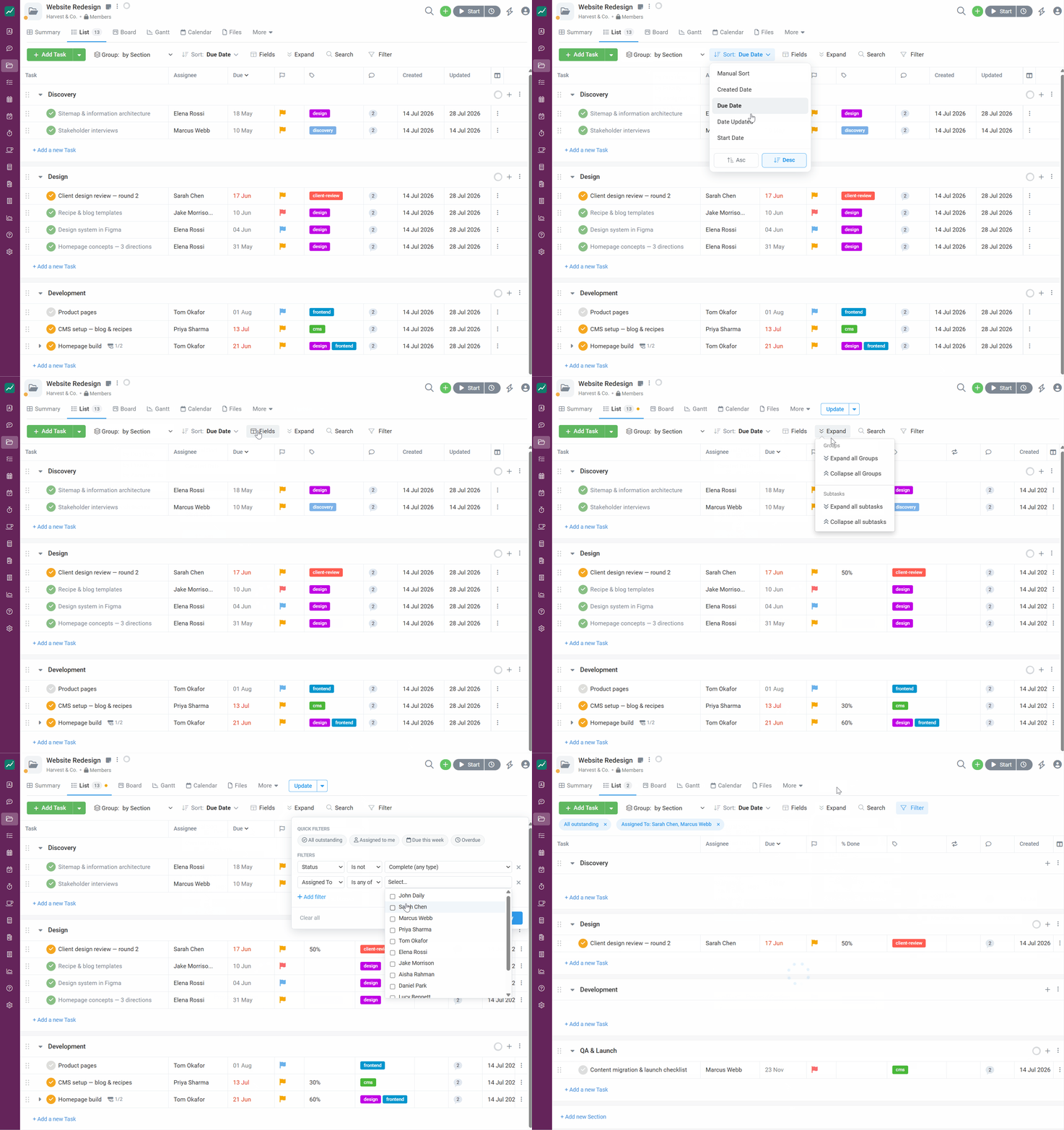
Where familiar things moved
Everything you could do before is still here — some controls simply have new homes:
| Before | Now |
|---|---|
| Filter button and dialog | Your active filters are always visible on the toolbar, with + Add filter to add more. Quick filters (All outstanding, Assigned to me, Due this week, Overdue and more) live in the Filter panel. |
| Layout switcher icons (list / board / Gantt / calendar) | Each layout is a tab in the view bar |
| Project page tabs (Summary, Tasks, Files) | Also tabs in the same view bar |
| Active / Archived toggle on the Projects page | Archived projects live in the built-in Archive Projects view |
| Sort dropdown with combined direction options | Sort field dropdown with a separate ascending / descending control |
| Show/hide columns | The Fields button on the toolbar (the column icon at the table’s top-right corner works too) |
| Task count | Shown beside the active view’s name in the view bar |
| “Tasks for” selector on My Tasks | Click the user’s name at the top-left of the My Tasks page |
Working with views
Switching views
Click any tab in the view bar. Each view remembers its own filters, columns, sorting, grouping — and even whether you had groups and subtasks expanded or collapsed.
Changing a view
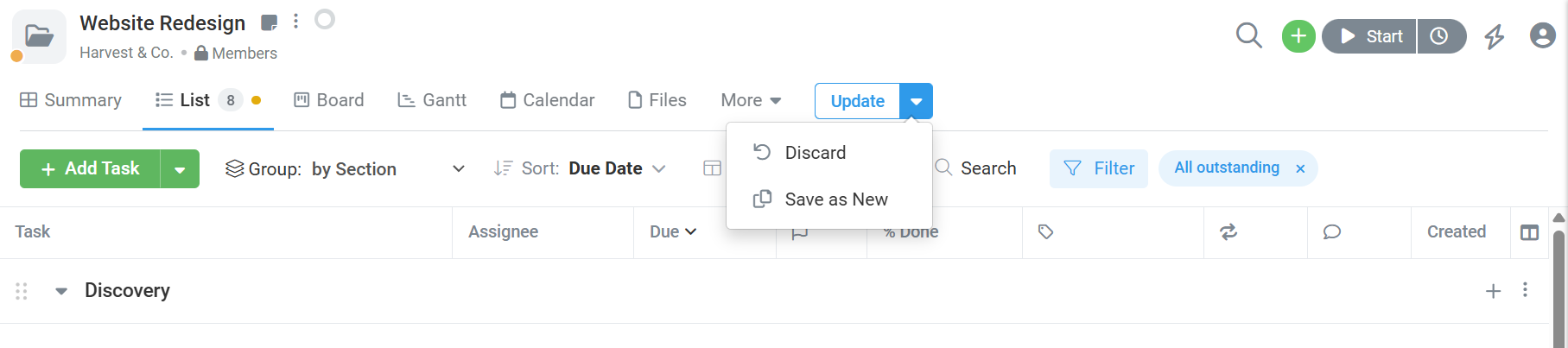
Adjust anything — add a filter, hide a column, change the grouping — and the view enters an unsaved changes state: an amber dot appears on the tab, and three buttons appear:
- Discard — return the view to its last saved state.
- Update — save your changes into this view.
- Save as new — keep the original untouched and save your changes as a brand-new view.
Nothing is saved until you choose. If you switch tabs or leave with unsaved changes, we’ll ask what you’d like to do.
Creating a view
Two ways:
- Save as new while you have unsaved changes — your current setup becomes the new view.
- The + button at the end of the view bar — pick a layout (List, Board, Gantt, Calendar) and start from there.
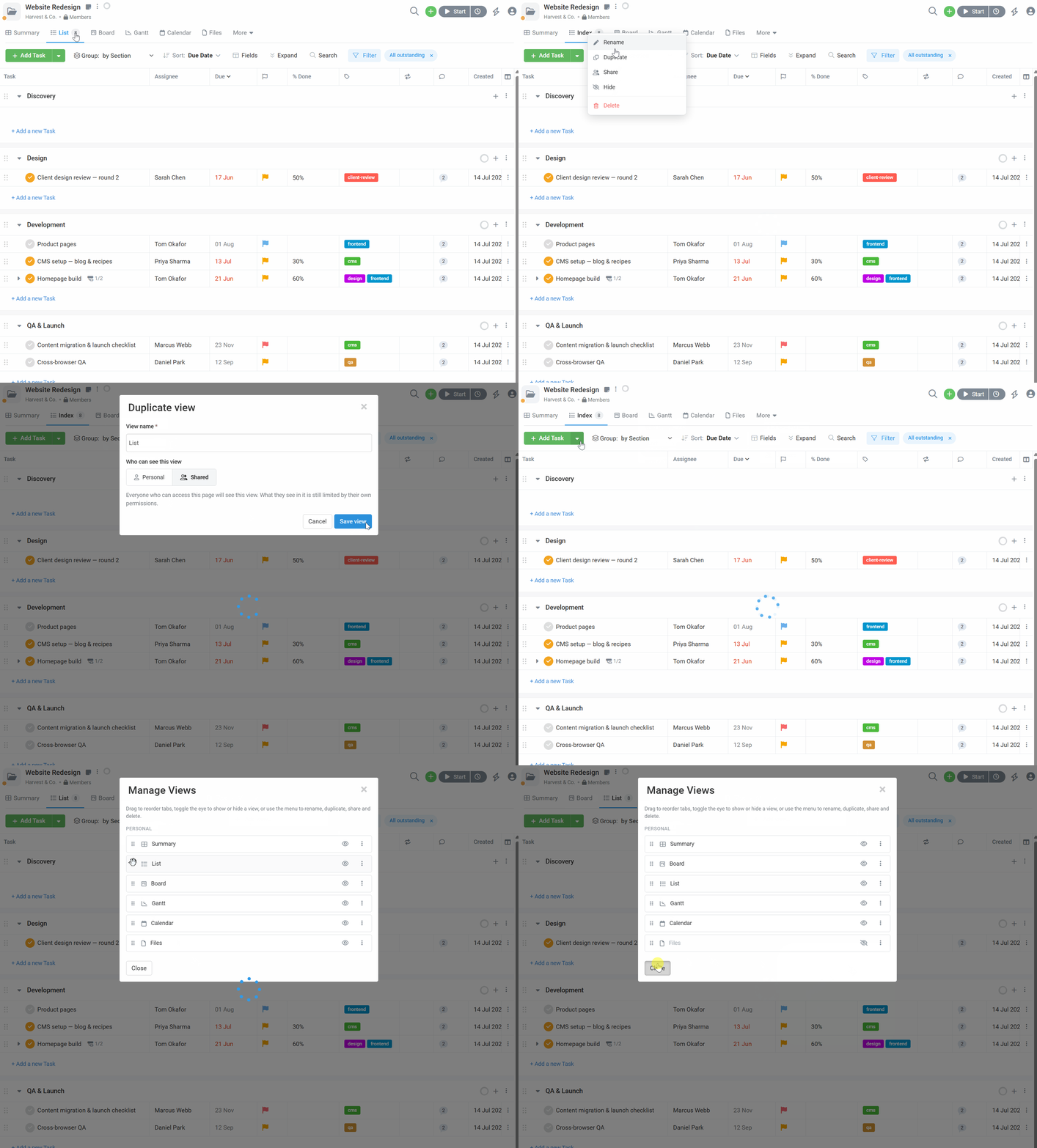
Either way you’ll name the view and choose who can see it:
- Personal — only you.
- Shared — everyone who can access the page.
Renaming, reordering, and deleting
- Rename: double-click or right-click the tab name, or use the tab’s menu.
- Reorder: use Mange views menu and drag tabs into any order you like. Tab order is personal — rearranging your tabs doesn’t change anyone else’s.
- Delete: right-click delete or use Manger views menu to delete a tab. A page must always keep at least one view, so Delete is unavailable on the last remaining tab.
The built-in views (like List, Board, and Summary) are ordinary views: rename them, reconfigure them, reorder them, or delete them like any other.
Sharing views with your team
A shared view appears for everyone who can access that page — same name, same filters, same columns.
Two important rules:
- Shared configuration, personal permissions. A shared view shares the setup, not the data. Each person sees only the tasks and projects their own permissions allow — so two people can open the same shared view and correctly see different rows.
- Only the view’s owner can update it. If you change someone else’s shared view, Update view isn’t available — use Save as new to keep your version without affecting theirs.
On the Project Tasks page, views apply across all your projects. Create or edit a view on one project and you’ll find it on every project — one “Overdue this sprint” view works everywhere. (The same applies to the built-in tabs: renaming “Board” renames it on every project.)
My Tasks views are always personal — there’s no sharing option there.
Working with filters
- Add a filter with the + Add filter link or the Filter panel. Choose a field, an operator (is any of, contains, before/after, and more), and your values.
- Edit a filter by clicking it on the toolbar. Remove it with its ×. Clear all appears when you have two or more.
- Quick filters — one-click favourites like All outstanding, Assigned to me, Due this week, Overdue, and Hide subtasks — live at the top of the Filter panel.
When a filter needs your attention
Sometimes a saved filter refers to something you can’t see:
- “1 restricted filter” — the view was saved with a filter on something your permissions don’t include (for example, a project you’re not a member of). The filter still applies — which may be why the view looks emptier than you expect — but its details stay private. You can remove the filter to widen the view for yourself.
- “No longer exists” — the filter points at something that has since been deleted (a task type, a user). It currently matches nothing; remove it or pick a new value.
Either way, the view always tells you why you’re seeing what you’re seeing.
Fields, grouping, and sorting
- Fields controls which columns show and their order. Drag columns to rearrange them on list views. On Board views, fields can be shown or hidden (card layout is fixed); Gantt views offer a focused set of columns.
- Group by the fields that matter — sections, assignee, status, due date, customer, and more depending on the page. When you group by a field, its own column steps aside automatically (the group headings already show it) and returns when you change grouping.
- Sort by any sortable field, ascending or descending. Sorting applies within groups when grouping is on.
What’s on each page
- Project Tasks — six views out of the box: List, Summary, Board, Gantt, Calendar, and Files. Views apply across all your projects.
- My Tasks — List, Board, Gantt, Calendar, and Files, always personal. Click your name at the top-left to look at another team member’s tasks instead.
- All Tasks — every task across all your projects in one list. Filter by Assigned To, Due date, Priority, Project, Status, Tags, or Task type — and Hide Subtasks for a cleaner top-level list.
- All Projects — your whole portfolio, now in three layouts: the familiar list plus a brand-new Kanban board (drag projects between columns) and a Gantt timeline (every project’s start and end dates side by side). A built-in Archive Projects view keeps your archived projects one click away — it’s the one view that can’t be deleted. Filter, group, and save project views just like task views.
FAQ
Where did the Filter button go? Filtering is now always visible: your active filters appear right on the toolbar. Add more with + Add filter, or open the Filter panel for quick filters.
Why does my colleague see different tasks in our shared view? Shared views share the configuration, not the data — each person sees only what their permissions allow. That’s by design.
Why is this view empty? Check the active filters on the toolbar. An aggressive filter combination — or a “restricted filter” saved by someone with broader access — can narrow a view to nothing. Remove or adjust filters to widen it.
Can I get the old defaults back? Yes — the built-in views ship with sensible defaults, and Discard always returns a view to its last saved state. You can also delete views you don’t want (keeping at least one) and create your own from scratch.
I changed a built-in view on one project and it changed everywhere. Why? Project Tasks views are account-wide by design, so a good setup works on every project. If you want a one-off arrangement, use Save as new instead of Update view.
Do my changes affect my teammates? Only if you update a shared view you own. Personal views, your tab order, and your default view are yours alone.